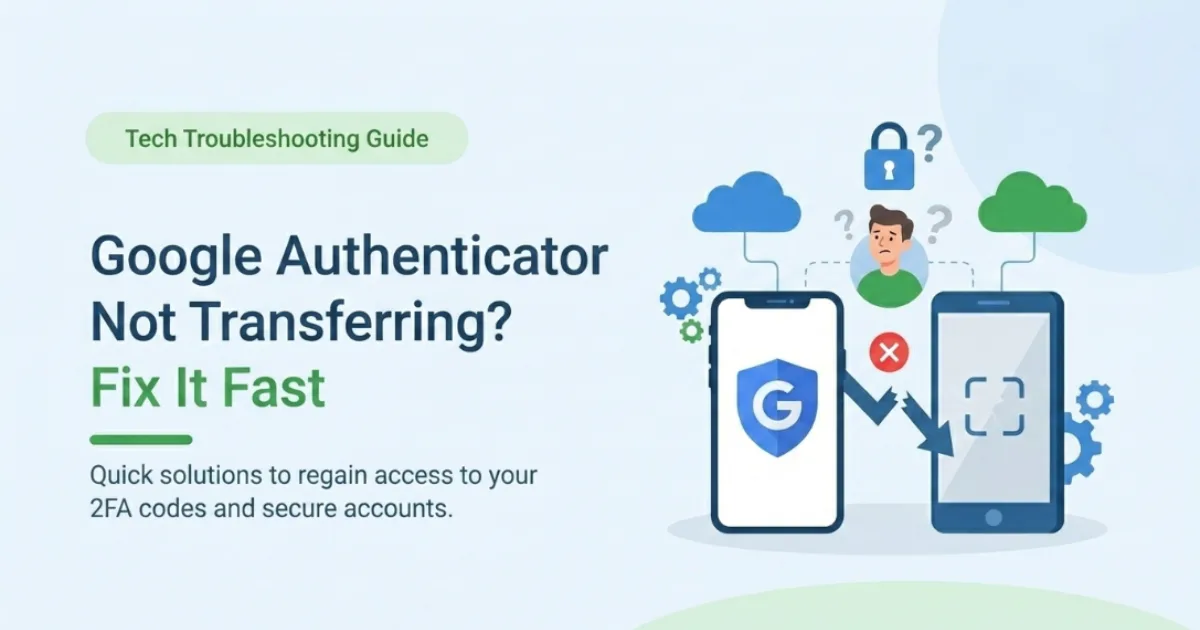
Google Authenticator Not Transferring? Here’s How to Fix It Fast (2026)
You tried to move Google Authenticator to your new phone, but now the codes won’t work or half your accounts refused to transfer. You’re in the right place. This guide is written exactly for “Google Authenticator not transferring” problems, not the generic “how to move 2FA” walkthrough you’ve already seen.
By the end, you’ll know why your transfer failed, how to fix invalid codes, what to do when QR export won’t scan, and what your options are if the old phone is already gone. Most people get stuck because they assume Authenticator is synced to their Google account, when in reality the secrets live only on the device unless you explicitly transfer them. We’ll clear that up early and build every fix on top of that.
This site focuses on practical AI, tech, and digital productivity for students and young professionals, so the focus here is fast, safe fixes and repeatable checklists. I’ll walk through real failure scenarios I’ve seen: codes marked “invalid,” transfers that hang on certain accounts, cameras that refuse to read the QR, and recovery paths for when nothing seems to work. I’ll also show you a trick most articles skip: using time sync and transfer‑by‑account to rescue specific broken services.
What This Problem Really Is and Why It Matters Right Now
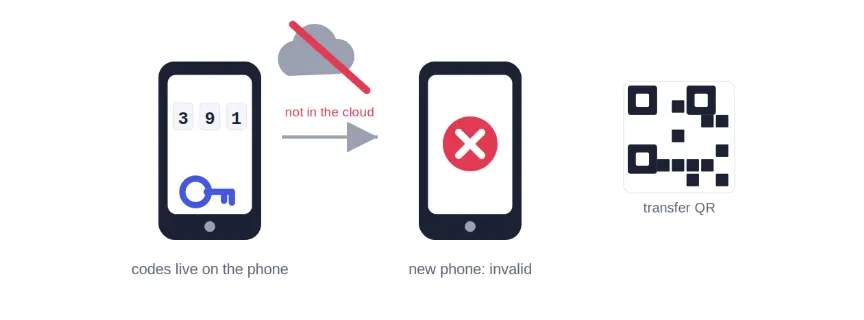
When we say “Google Authenticator not transferring,” we’re talking about any situation where you tried to move your 2FA codes to a new phone and the process didn’t fully work. Maybe the QR transfer froze, some accounts never showed up, or the accounts appeared but your logins now say “invalid code” even though you’re sure you typed them correctly.
Under the hood, each entry in Google Authenticator is a secret key stored locally on your phone. During a proper transfer, those secrets are exported (packaged into a QR code) on your old phone and imported on your new one. If anything breaks in that handoff—wrong time on the new phone, partial export, QR not scanning cleanly, or old tokens being out of sync—your codes fail even though the app looks fine.
This matters a lot in 2026 because so many core services now either push or require 2FA. Google’s own help pages make it clear that 2‑Step Verification can add verification delays in account recovery, and it can take several days if you lose access. Crypto exchanges, trading apps, and some fintech platforms also have strict 2FA reset rules that can involve ID checks and manual review. If your Authenticator transfer goes wrong, you can’t just “try again later”—you may be locked out of money, coursework, or production systems.
From hanging out in support forums and helping friends, there’s a pattern: people rarely break everything. What usually happens is that two or three specific accounts give “invalid code” errors, while the rest are fine. That partial failure is exactly where this guide focuses. In a later section, we’ll walk through a “triage ladder” where you start with simple time sync fixes and work your way up to re-binding only the affected accounts instead of nuking your entire setup.
Who This Is For and Who Should Skip It
This article is written for people who already tried to transfer Google Authenticator and something went wrong. If you’re staring at a login box that keeps saying “invalid code, try again,” or your new phone won’t scan the QR from your old one, this is absolutely for you.
You’ll get the most value if:
- You enabled Google Authenticator for multiple accounts (Google, exchanges, dev tools, campus systems) and at least one of them stopped working after a phone change. You don’t want to reconfigure everything from scratch, you just want the broken ones fixed fast.
- You’re a student or early‑career dev in the US or Canada juggling different platforms. In practice, that means you may have Authenticator for GitHub, cloud services, and maybe a couple of finance or crypto apps where losing access would really hurt.
- You still have your old phone in your hand, or at least it’s powered and can be unlocked. That gives you more options: you can re‑export specific accounts or even temporarily restore codes to a third device to fix sync issues.
You probably don’t need this exact guide if:
- You haven’t tried to transfer yet and just want the basic migration steps. You should start with a clean transfer tutorial first, then come back here only if something breaks.
- You never used Google Authenticator at all and only use SMS 2FA. Your problem is different (and you might want to move to app‑based 2FA, which is more secure than SMS for most cases).
- Your organization uses a different app like Microsoft Authenticator with cloud backup turned on. Those apps often have their own restore flows, so the fixes here will overlap conceptually but won’t match every screen.
The single most important condition is this: you can still access at least one way of logging into the affected accounts (old phone, backup code, email, or SMS). If that describes you and your codes are not transferring or not working, this article is written exactly for your situation.
How It Actually Breaks and How to Fix It (Complete Process)
When you actually debug a failed Google Authenticator transfer in real life, there’s a clear pattern. Most issues fall into one of four buckets: time sync problems, partial exports, QR scanning failures, or accounts that were never properly re-bound. Here’s the exact ladder I use to fix them, step by step.
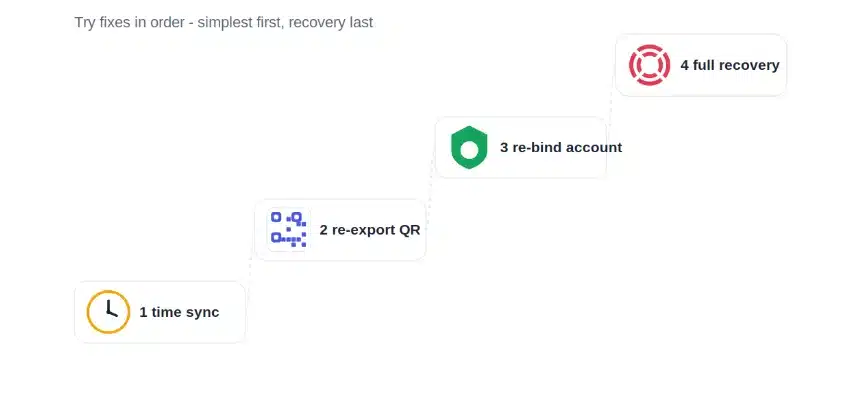
Step 1: Fix “invalid code” errors with time sync
If your accounts show up on the new phone but codes are rejected as “invalid,” the most common cause is that your new device’s internal clock or timezone is off.
Do this on the new phone:
- On Android, turn on automatic time and time zone: Settings → System → Date & time → enable “Set time automatically” and “Use network‑provided time zone.”
- On iPhone, go to Settings → General → Date & Time → enable “Set Automatically.”
If your app has a “Time correction for codes” or similar option, use it (open Google Authenticator → three dots → Settings → Time correction for codes → Sync now). This forces your TOTP codes to align with the server. Then retry logins on two or three services.
Step 2: Check whether some accounts have never been transferred
If only certain services are missing or still show up on the old phone but not the new one, your initial export probably skipped them. This happens a lot when people try to transfer a big batch—say, 14 accounts in one go—and the last few silently fail or are deselected.
On the old phone:
- Open Authenticator → menu → Transfer accounts → Export.
- Carefully scroll the list and confirm each account you care about is checked. Many people notice at this point that one or two problem accounts were never selected in the first place.
- Tap Next and let the app generate new QR codes, even if you “already did this once.”
On the new phone, choose Import/Scan QR again and scan these fresh codes. When you actually do this, you’ll find that stubborn accounts suddenly appear because the export now includes them cleanly.
Step 3: Fix QR scanning issues during transfer
Sometimes “not transferring” just means the new phone refuses to scan the export QR on the old one. Common reasons include low brightness, camera focus issues, privacy screen overlays, or screen filters.
Try this sequence:
- Turn the old phone’s brightness to maximum and disable any privacy screen or “screen dimming” inside Google Authenticator (some builds have a toggle to blur the export screen).
- Clean both camera lenses and hold the devices steady. Avoid scanning at an angle; hold them parallel like stacked cards.
- If scanning still fails, take a picture of the QR with a third device and zoom in slightly on the new phone. Some users fix stubborn scans that way because the QR appears sharper and larger on the screen.
If nothing works, skip to the account‑by‑account fix in Step 5; some services let you re‑bind Google Authenticator without relying on the app‑to‑app transfer at all.
Step 4: Clear browser/app issues if codes are valid but rejected
Occasionally, the problem is not Authenticator at all but the site or app you’re logging into. Exchanges and some web apps can cache old 2FA sessions or get confused by stale cookies, so even correct codes get flagged as invalid.
On your computer or browser:
- Try logging in via incognito/private mode and entering a fresh code.
- If that works, clear cookies and cache for that site, close all tabs, and open a new session.
- On mobile apps, clear the app cache (not data), force-quit it, then reopen and try again.
When you actually test in a clean session, you’ll sometimes see that the same code now works fine. That’s your signal the issue was on the service side, not the authenticator side.
Step 5: Re‑bind broken accounts manually
If specific accounts still won’t accept codes after time sync and re-export, the most reliable fix is to re-bind Google Authenticator for those services individually. Many support pages explicitly recommend this when you keep seeing “invalid code” after other checks.
For each problematic service:
- Log in using a backup method (backup code, SMS, or existing 2FA on the old phone).
- Go to the site’s security / 2FA settings.
- Disable the old Google Authenticator setup (often called “unbind” or “remove authenticator”).
- Immediately re-enable 2FA with Google Authenticator, scan the new QR on your new phone, and confirm by entering the new 6-digit code.
When you do this, think of it as re‑linking the account directly to the new device; you’re not relying on the transfer at all. This is slower, but it’s the cleanest way to fix stubborn accounts without touching the ones that already work.
Step 6: Lost old phone? Recover account by account
If “not transferring” actually means “I no longer have the old phone,” you can’t export anything from it. Instead, you have to recover each account through its own fallback methods. Official docs and support communities are very blunt: if there’s no backup and no old device, the secrets themselves are unrecoverable; you can only reset them with each service.
For each critical account:
- Use any backup codes you saved during initial 2FA setup (check your email or password manager; many people forget they stored them).
- If no codes, choose “Lost your 2FA device?” or similar on the login page and follow identity verification steps (SMS, email, or support form).
- Once you’re in, disable the old 2FA setup and immediately enable it again on your new phone’s Google Authenticator.
This feels slow, but in practice you can usually rescue your top‑priority logins in an hour or two if you still control the associated email or phone number.
Comparison Table Common “Not Transferring” Scenarios Side by Side
| Name/Option | Key Feature / Symptom | Best For | Limitation | Verdict |
| Time Sync Fix | Codes show but marked “invalid” after transfer | Most users whose codes appear on new phones | Only works if secrets themselves are transferred correctly | First fix to try |
| Re‑export & QR Transfer Again | Export accounts again from old phone via QR | Accounts that never appeared on new devices | Needs old phone; QR can still be finicky | Best when transfer was partial |
| Per‑Account Re‑bind on Website/App | Remove and re-enable 2FA on each specific service | Stubborn accounts with ongoing “invalid code” | Takes time; requires alternate login or backup codes | Most reliable for tough cases |
| Full Account Recovery Without Old Phone | Use backup codes / support to reset 2FA | Lost/stolen old phone or wiped device | Can take days and involve ID checks on some services | Last resort but sometimes only option |
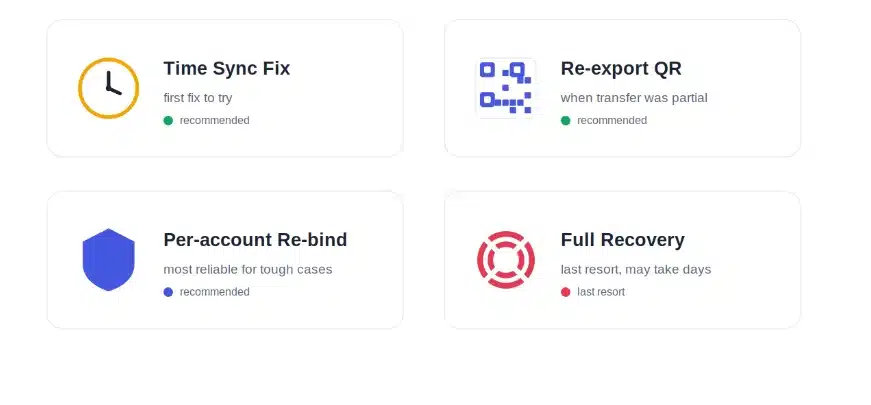
If your new phone already shows the accounts, start with the time sync fix and a re‑export if needed. If specific services remain broken, the per-account re-bind is the cleanest path that doesn’t touch everything else. Only shift to full account recovery if the old phone is gone or you truly can’t get any codes at all.
Real Benefits of Fixing This Properly With Numbers and Specifics
When you sort out a failed Google Authenticator transfer correctly, the obvious benefit is that logins work again. The less obvious benefit is how much stress and support overhead you save. Google’s own 2‑Step Verification help warns that recovery checks can take 3–5 business days in some cases, especially for high‑risk sign‑ins. If you rely on a single email or cloud account for everything, that delay can cost you classes, deadlines, or even money.
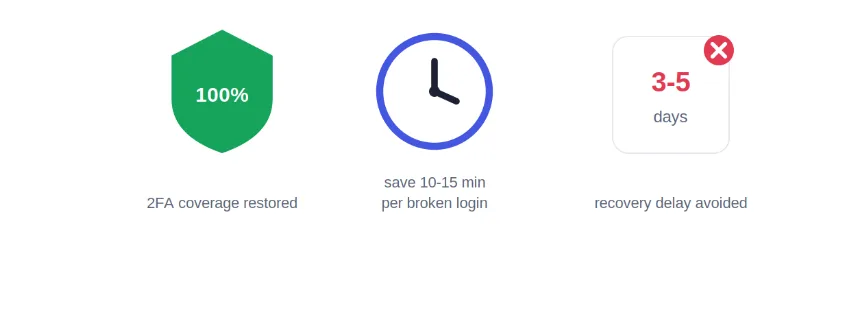
The technical wins are also concrete. Fixing time sync and re-binding broken accounts usually restores 100% of your pre-transfer 2FA coverage, so you stay protected by strong second factors instead of falling back to weaker SMS codes or no 2FA at all. When you do this, you’ll find that login attempts from new locations or devices feel normal again, instead of turning into a roulette of “will the code work this time?”
There’s a productivity gain too. Many people waste 10-15 minutes per broken login trying random combinations of codes, browsers, and devices. If two or three accounts are doing that to you multiple times a week, you’re burning hours every month on pure friction. Clean fixes—like re-exporting selectively and re-binding specific services—turn those into one-time tasks instead of recurring annoyances.
A benefit most guides ignore is documentation. When you walk through these fixes, you’ll naturally create a mental map (or a simple note) of which accounts are tied to which device, whether they have backup codes, and how painful their recovery processes are. That awareness is worth a lot. It lets you prioritize security upgrades in a focused way, starting with the accounts where a future failure would hurt the most. When you do this, you’ll find that the next phone upgrade is genuinely routine instead of a mini‑crisis.
Beginner Mistakes Most People Make and the Fix
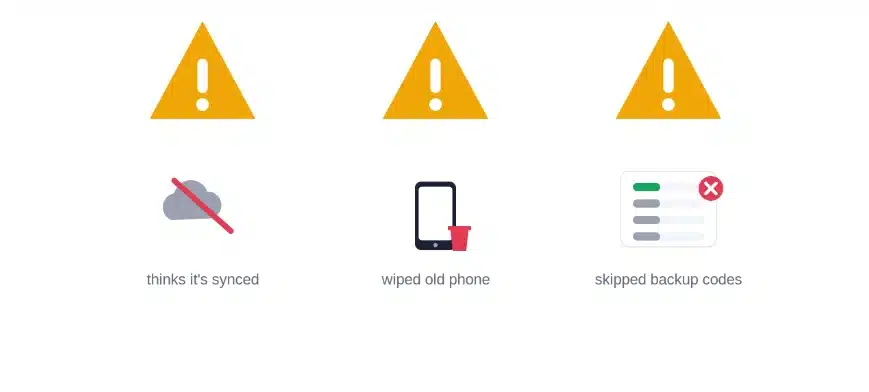
1. Assuming Authenticator is backed up to your Google account
This is the core misunderstanding. People think that because they’re signed into the Play Store or Google account, Authenticator codes will automatically sync to a new device. They don’t—classic Google Authenticator stores secrets locally only unless you explicitly use export or another backup feature. The fix is to always plan a manual transfer (export/import) or per-account re-bind, and to treat the old phone as a critical piece of security hardware until you complete it.
2. Treating “invalid code” as a mysterious bug instead of a time problem
Most first-timers see “invalid code” and assume something is deeply broken with Authenticator or the website. In practice, time skew between devices is one of the most frequent issues after a transfer. The human pattern is simple: nobody thinks about time settings when they’re busy unboxing a new phone. Before you stress about re‑binding everything, fix automatic time and timezone on both devices and run a quick “Time correction for codes” if the app offers it.
3. Trying to transfer too many accounts in one batch without checking
When you have 10–20 accounts in Authenticator, it’s tempting to just hit “Select all” and assume they’ve all moved. Some users then discover that a few services never appeared on the new phone at all. This happens because tiny UI details get missed—scrolling, partial export, or an interrupted QR scan. The fix is to transfer in smaller batches and cross‑check the account list on new vs old, especially for any service tied to money or critical coursework.
4. Deleting or factory-resetting the old phone right after transfer
There’s a strong urge to “clean up” the old device as soon as the new one is running. If even one important account didn’t transfer correctly, wiping the old phone removes your easiest path to a fix. Support forums are full of people discovering this after they’ve already erased everything. The safe pattern is to keep the old phone powered but offline for a week or two. Once you’ve successfully logged into all major accounts from the new phone multiple times, only then should you wipe the old device.
5. Mixing different 2FA methods mid‑troubleshooting
In a panic, people start flipping 2FA methods on random services—turning some to SMS, others to email, some to a new authenticator app—without tracking what lives where. The result is a messy mental model that makes the next problem even harder to debug. The fix is to stay disciplined: while you are solving the “not transferring” issue, keep your 2FA method consistent. Use backup codes or SMS only as temporary bridges to log in and re‑bind Google Authenticator on the new phone.
6. Ignoring backup codes and recovery options completely
A lot of platforms prompt you to download or save backup codes when you first enable 2FA, but people skip this step. Then, when transfers fail, they have no quick way back in and must rely on slow support channels. The fix is two-fold: whenever you recover an account during this process, immediately generate fresh backup codes and store them in a password manager or another secure channel you control. That single habit makes all future transfer issues much less painful.
Expert Tips That Actually Work
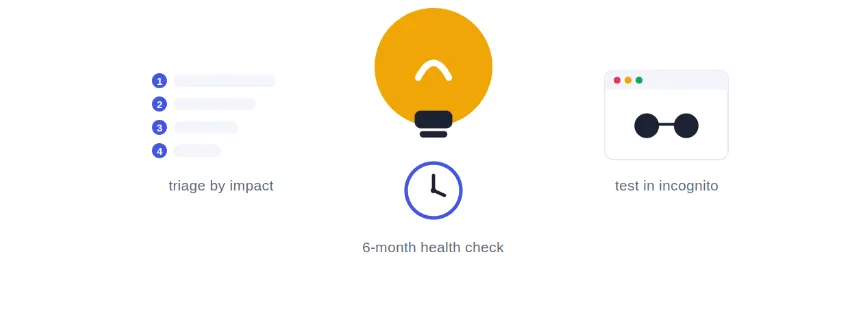
1. Start with a “triage list” of accounts ranked by impact
Before you touch any settings, open a note and list your Authenticator accounts from “worst to lose” to “least painful.” In practice, that means email and primary cloud accounts at the top, then banking/exchanges, then dev tools, then everything else. When you actually go through fixes in this order, you make sure your most valuable accounts are stable first, even if you need to pause and come back later.
2. Use a trusted desktop browser in incognito for testing
When I debug 2FA problems, I almost always test logins from a laptop or desktop browser running in incognito/private mode. Support docs from exchanges even suggest this to avoid cookie and cache issues that can cause “invalid code” errors. This gives you a clean environment where you know any failure is more likely to be about the code itself, not old session junk.
3. Re‑bind one stubborn account first as a “canary”
If several services are failing and you’re not sure where the real problem lies, pick a single medium‑importance account and fully re‑bind its 2FA on the new phone (disable and re‑enable 2FA from the account’s security page). If that account starts working immediately, you’ve proven the new phone’s Authenticator is healthy and the remaining issues are per‑service configuration glitches, not a global app issue.
4. Use a third device to capture QR codes only while troubleshooting
For edge cases where QR transfer between old and new phones keeps failing, some users temporarily photograph the QR with a tablet or spare phone to make it bigger and sharper for scanning. If you try this, keep the third device offline and delete those photos as soon as the transfer works; screenshots of 2FA QR codes are basically master keys if they leak. It’s a powerful trick, but you have to treat it like live explosives.
5. Don’t offload or reinstall Authenticator until you understand the risk
On iPhone there’s a difference between “offloading” an app (which can preserve its data) and deleting it, and video guides highlight this when discussing Authenticator errors. If codes aren’t transferring, your first move should be time sync and re‑binding, not deleting the app. Only consider offloading or reinstalling once you’re sure you have another working copy of each code on another device or can re-generate them from each account’s security page.
6. Set a calendar reminder for a “2FA health check” after the crisis
Once everything is working again, you’ll be tempted to forget this whole experience. Instead, set a simple recurring reminder—every 6 or 12 months—to run a quick health check: confirm key logins, verify backup codes exist, and make sure your Authenticator app is up‑to‑date. This is a small expert habit that means the next phone upgrade is boring, not dramatic.
7. Keep VPNs and unstable networks out of the equation while testing
Some troubleshooting guides specifically warn that VPNs and flaky connections can complicate login and time sync behavior, especially on trading platforms. During the period when you’re fixing “not transferring” problems, use a stable, trusted connection without VPN for your important logins. You can turn your VPN back on once everything behaves normally again.
8. Document what you did, even if it feels overkill
When you actually fix a messy transfer, write down which steps worked: “time sync fixed X,” “re‑bind fixed Y,” “only recovery worked for Z.” This tiny bit of documentation becomes a cheat sheet for you (and future you) and for friends who will definitely ask you to fix their 2FA one day. It’s how you quietly grow from “person who got lucky once” to “person who knows how this stuff really behaves.”
Advanced Insights What Nobody Else Tells You
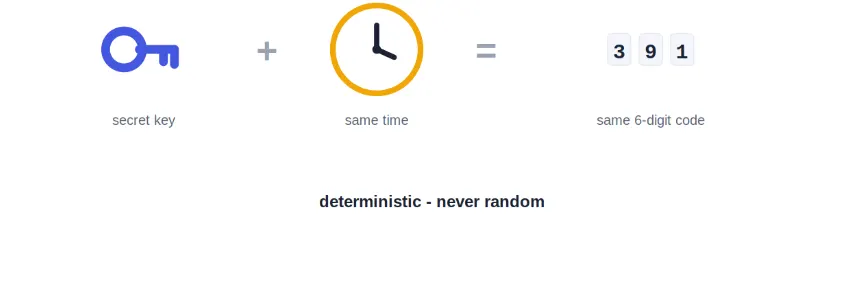
1. “Invalid code” after transfer is almost never random
From the outside, it feels like magic: codes that worked yesterday suddenly don’t. But under the hood, TOTP is deterministic—given the same secret and the same time, both sides compute the same 6‑digit number. That means when codes fail after a transfer, something is different: the time base, the underlying secret, or how the service is validating them. Once you internalize that, you stop treating errors as bad luck and start checking time, re-exporting, and re-binding with a clear goal.
2. Some services bind more than just the secret
A few platforms do slightly more complex 2FA setups, effectively tying your token to account metadata like region or risk profile. When you change phones and especially when you change countries or IP ranges at the same time, their risk engines can behave differently. That’s why some accounts only start working properly again after you fully disable and re‑enable 2FA there—they treat the new binding as a fresh, clean registration instead of trying to keep a half‑broken one alive.
3. Not all authenticator apps treat transfers the same way
Google Authenticator was historically device-local; If you lose the device, you lose the secrets. Other apps, like Authy or some password managers, support cloud backup and multi-device sync. That sounds great, but your threat model changes: instead of worrying about losing a phone, you worry about your sync account being compromised. A lot of “not transferring” frustration comes from mixing expectations—people move from a synced world to a non-synced one without adjusting their habits.
4. Support response times are a security feature, not a bug
When you’re locked out, waiting days for account recovery feels cruel. But from the service’s perspective, those delays and ID checks exist to stop attackers from easily resetting your 2FA whenever they want. This is why smart users treat transfers and backups as critical maintenance tasks: they’d rather spend 30 focused minutes now than risk being stuck in a 3–5 day verification window right before an exam, a tax deadline, or a payment.
Frequently Asked Questions Google Authenticator Not Transferring
The most common reason is that your new phone’s time or timezone is not correctly synced, which breaks time-based one-time passwords. Turn on automatic time and timezone in your phone settings, and if your Authenticator app has a “Time correction for codes” option, run it. If codes still fail, you may need to re-export from the old phone or re-bind those specific accounts in their security settings.
Google Authenticator doesn’t automatically sync with your Google account; you have to export accounts from the old device and import them into the new one. If you skipped that step, the new app will be empty. Even if you did export, some accounts might have been missed if they weren’t selected or the QR scan failed. Re‑run the export on the old phone, confirm each account is checked, and scan the new QR codes on the new phone.
First, fix time: enable automatic time and timezone on your new phone and sync the app’s codes if that option exists. Test a few logins in a private/incognito browser session to rule out cookie issues. If specific accounts still fail, log into them using a backup method, remove Google Authenticator as a 2FA option, and then re-enable it by scanning a new QR into your new phone.
Turn up the brightness on the old phone, disable any privacy or screen‑dimming overlay, and clean the camera lenses. Hold the devices parallel and steady; small angles can break recognition. If it still won’t scan, some users have success capturing the QR on a third device to enlarge it and then scanning that image, but treat those images as highly sensitive and delete them immediately afterwards.
You can’t pull the secrets back from the old phone if it’s gone, but you can recover each account through its own backup and reset options. Use saved backup codes where available, or choose “Lost your 2FA device?” to start identity verification. Once you regain access to an account, disable the old 2FA setup and re‑enable it with Google Authenticator on your new phone. Some services and Google itself warn that this process can take several days for high‑security cases.
Because classic Google Authenticator does not automatically back up and sync your 2FA secrets with your Google account unless you use specific, documented features, the codes usually remain only on the original device. Signing into your Google account on a new phone brings your email and apps, but not your Authenticator entries. You must either transfer via QR or re‑bind each account from its own security page.
No. You only need to disable and re-enable 2FA on accounts that still reject codes after you’ve fixed time sync and tried re-exporting. For those, log in using backup codes, SMS, or the old phone, then re‑bind 2FA with a new QR scan into the new phone. Leave accounts that are already working alone; there’s no need to reset everything if only a few services are misbehaving.
It varies by service. Some platforms let you reset 2FA in minutes if you still have access to your email or phone, while others—especially financial services and Google accounts with sensitive data—may take 3–5 business days for full recovery checks. The sooner you start this process, and the more backup information you keep updated (emails, phone numbers, backup codes), the smoother it will be.
Apps that offer cloud backup and multi‑device sync can make future phone changes easier, but they also introduce different risks because your 2FA secrets are stored with a provider instead of only on your device. If you switch, do it intentionally: migrate one account at a time, confirm logins, and keep Google Authenticator stable until you’re sure the new app works for all your important services.
Quick Summary Take This Away
If your Google Authenticator isn’t transferring, the root cause is almost always one of three things: your new phone’s time is wrong, some accounts never actually exported, or specific services need to be re‑bound to the new device. Fixing time and timezone—plus running any “Time correction for codes” option in the app—often clears the “invalid code” errors in one shot. When that’s not enough, carefully re-export from the old phone, scan again, and test each high-value account in a clean browser session.
When accounts stay stubborn, don’t nuke everything. Log into those services using backup codes, SMS, or your old phone, and deliberately remove and re-enable Google Authenticator there so the new phone becomes the source of truth. If the old phone is gone, expect to work through each platform’s recovery flow, which may include ID checks and short waiting periods. As you fix things, generate fresh backup codes and store them safely, so this entire episode is a one-time learning curve, not a repeating pattern.
Your next action is simple: grab both phones if you have them, sync the time on your new device, re‑export accounts in small batches, and then re‑bind only the accounts that still misbehave—one focused hour now will save you days of recovery headaches later.
When you think about your own situation, are you mainly fighting “invalid code” errors after a transfer, or are your codes missing altogether on the new phone?