
Why Is My Computer So Slow? The Real Causes (And Fixes That Don’t Suck)
You’re an AI/tech student, your laptop is your entire life, and yet… it moves like it’s powered by a hamster on a treadmill.
Chrome takes a year to open, VS Code freezes when you hit save, and your fans sound like a PS4 trying to run Cyberpunk.
Welcome to the modern rite of passage: discovering that “fast quad‑core laptop” from the product page means “barely coping” once you open Chrome, Discord, Figma, and one innocent Jupiter notebook. The joke’s on you, but also on everyone who pretends this is your fault for “not maintaining your PC properly.”
This site is about tech, AI, and digital productivity — which means we care less about vibes and more about what actually fixes things. By the end of this, you’ll know why your machine crawls, how to tell if it’s your hardware, your apps, or your habits, and exactly what to do tonight to make it suck less. No magic cleaners, no fake “one‑click optimizer,” just reality.
THE THING NOBODY ACTUALLY SAYS OUT LOUD
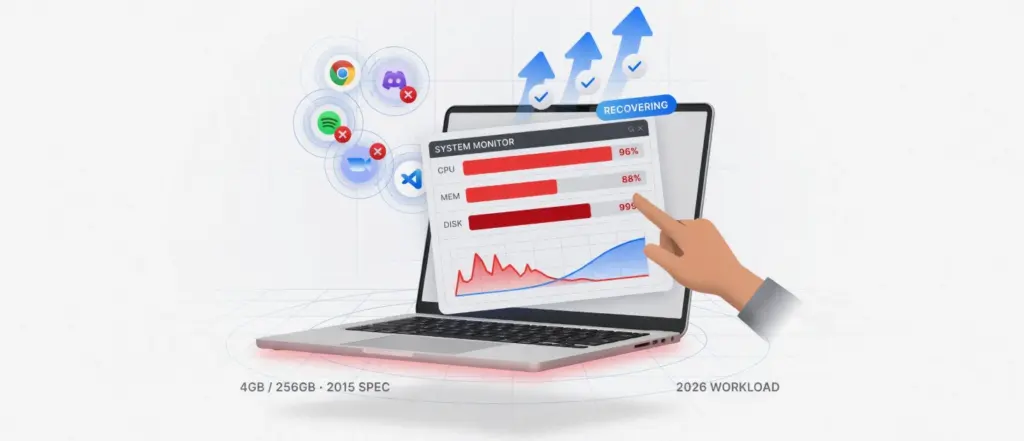
Here’s the part no glossy “15 tips to speed up your PC” article says clearly: your computer is slow because you are using it like a 2026 human, and it was designed for a 2015 workload.
Modern software assumes infinite RAM, infinite storage speed, and infinite patience. You have none of those.
Vendors will happily ship you a laptop with 4 GB or 8 GB of RAM and a 256 GB SSD, then expect it to survive Chrome, Discord, Spotify, Zoom, VS Code, Docker, and five Electron apps acting like they’re each the main character. Common causes are very basic: not enough RAM, slow or aging storage, too many background apps, thermal throttling, malware, or a near‑full drive. But nobody says, “Yeah, this is normal — your usage outgrew the hardware on day 30.”
Slow performance is usually a resource mismatch problem, not a “you didn’t clean your cache” problem.
When you actually look at what’s happening, it becomes obvious. Open Task Manager on Windows (Ctrl + Shift + Esc) and watch CPU, Memory, and Disk while you do normal stuff. You’ll see one of three things:
- CPU pinned near 90–100% when you open or switch apps.
- Memory at 80–95% with Chrome or “some AI thing” eating half of it.
- Disk at 90–100% on older HDDs, where just opening apps causes the system to choke.
That moment when your laptop freezes because you opened one extra Chrome tab? That’s not “mystery lag.” That’s the OS running out of RAM and dumping data to disk which is much slower so everything stalls. HP literally lists insufficient RAM and hard drive issues as top causes of a slow laptop. Intel and Dell both point to too many programs running at once, malware, and nearly full drives as repeat offenders too.
And then there’s background junk. Cloud sync, game launchers, update agents, “helper” apps that launch at startup and never leave. Microsoft’s own guidance is basically: check Task Manager, disable unnecessary startup apps, and stop letting 15 things boot with Windows for no reason.
So no, your computer didn’t “randomly get slow.” You installed enough stuff, opened enough tabs, and pushed it hard enough that the weak points finally showed. The good news? That also means there are very specific levers you can pull to fix it without buying a new machine tomorrow.
HOW THIS ACTUALLY WORKS THE REAL MECHANICS
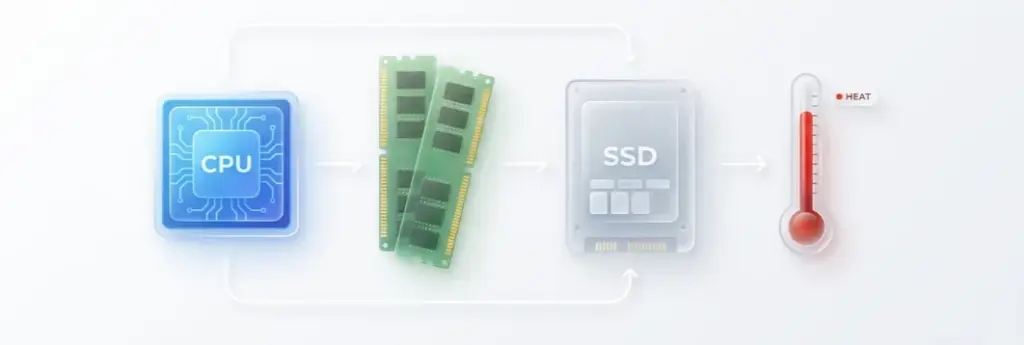
Let’s break the drama into boring, useful mechanics: what actually happens under the hood when your computer feels slow.
Your CPU is the brain. When the CPU is maxed out by some hungry app — say a browser tab doing heavy JavaScript, or an AI model running locally — everything else feels sluggish. Task switching lags, typing stutters, windows take time to respond. That’s because the CPU is busy juggling too many tasks at once, and you’re at the back of the line.
RAM is short‑term memory. When RAM fills up, the operating system starts using your storage as “virtual memory.” This is much slower, especially on older hard drives. That’s the feeling of “why did everything suddenly freeze when I opened one more app?” In practice, this hits students running heavy IDEs, browsers full of docs, and maybe a local database or Docker container all at once.
Storage speed is the silent villain. A hard drive (HDD) uses spinning disks, which means seeking data takes physical movement time. A solid‑state drive (SSD) is just flash memory no spinning, much faster access. An SSD can cut boot times and app load times dramatically compared to an HDD. If your system drive is old, fragmented, or nearly full, your whole system will feel like it’s thinking through mud.
Then there’s heat. Modern CPUs and GPUs slow themselves down when they get too hot, to avoid damage. This is called thermal throttling. In real life, it looks like this: you start a game or a long compile, things are fine for 5–10 minutes, then performance tanks and the fans scream. The chip is literally lowering its speed to survive. Dust‑clogged vents, bad airflow, or using your laptop on a bed all make this worse.
On top of all that, background apps quietly nibble at performance. Game launchers, cloud sync tools, search indexing, antivirus scans, and “update helpers” all run even when you think nothing is open. Tech support forums and even Microsoft’s own tips always start with: open Task Manager, sort by CPU, Memory, and Disk, see what’s actually eating resources, and kill or uninstall what you don’t need.
Student‑specific corner that generic articles skip: dev and AI tools. Local Python environments, Node servers, Docker, WSL, and “tiny” local models like Llama‑based tools eat RAM and CPU like snacks. They also spawn background processes that stay running even after you close the main window. If you’re wondering where your performance went, check if those are still active in Task Manager.
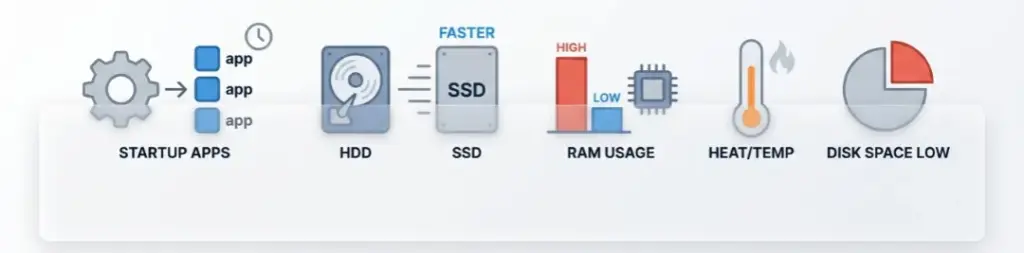
A quick reality list of what actually slows things down most often (with opinions included):
- Too many startup apps: Easy to ignore, but disabling them gives huge gains in boot time and “random” lag.
- Running on HDD instead of SSD: Biggest night‑and‑day upgrade, especially for older laptops.
- 4–8 GB RAM in 2026: Bare minimum for browsing, not enough for dev + AI work. Expect constant swapping.
- Overheating: Common in thin laptops; performance drops after a few minutes under load.
- Near‑full drive: Under ~20% free space, your system struggles with updates, temp files, and caching.
Once you see your slow PC as a simple resource and heat problem, the fixes stop feeling mystical. They become very boring, which is exactly what you want.
COMPARISON WHAT’S ACTUALLY DIFFERENT BETWEEN YOUR OPTIONS
Here’s what your main “slow PC” solutions really do.
| Option | What it actually does | Who it’s for | The catch |
| Disable startup/background apps | Frees CPU, RAM, and disk by stopping auto‑running junk. | Everyone, especially laptop users with 8 GB RAM or less | Needs 10–20 minutes of manual cleanup; easy to over‑disable important tools |
| Clean up storage and temp files | Frees space, speeds file access on older drives. | Systems with nearly full drives or old HDDs | Won’t fix no‑RAM or overheating issues by itself |
| OS and driver updates | Fixes bugs, improves compatibility and sometimes performance. | People seeing random crashes, freezes, or weird lag | Updates can be slow, and sometimes introduce new glitches |
| Upgrade to SSD / more RAM | Removes core hardware bottlenecks, especially with old HDDs. | Anyone planning to keep their machine 1–3 more years | Costs money; some laptops are harder or impossible to upgrade |
| Clean cooling / improve airflow | Reduces thermal throttling, keeps performance stable. | Gamers, devs compiling often, anyone with loud fans | Needs tools, care, or a shop visit |
If you’re a student doing AI, coding, and “normal” browsing, I’d prioritize: disable startup junk, clean storage, then seriously consider upgrading to an SSD and at least 16 GB of RAM if your machine allows it. The rest are supporting actors, not the main story.
WHAT ACTUALLY HAPPENS WHEN YOU TRY THIS
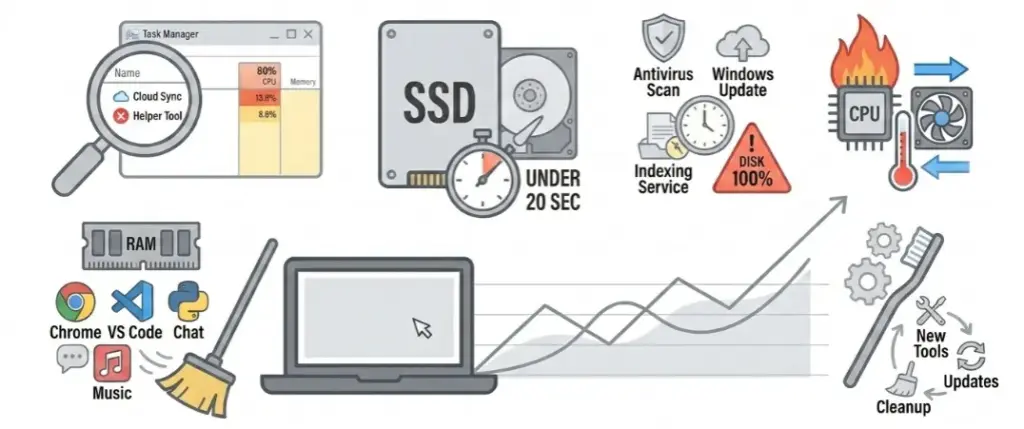
When you actually sit down and attack a slow laptop, it doesn’t feel like a clean “Step 1 to Step 10” checklist. It feels more like digital archaeology.
You open Task Manager, sort by CPU, and discover that some “helper” or cloud sync tool you never asked for is using more resources than your editor. You disable it from startup, restart, and boot time suddenly drops from “make coffee” to “sip water.” That alone is almost insulting.
Then you move to RAM. You watch Memory hover around 80–90% with just Chrome, VS Code, and maybe a Python process. Closing one “small” app a chat client, a music player, or a random launcher suddenly makes everything smoother. In practice, this is the pattern: the system isn’t dying because of one obvious villain, it’s suffocating under ten small things you forgot about.
The part that surprises most people is how much difference storage type makes. Swap an HDD for an SSD and the same machine feels like it aged backwards five years. Booting drops from a minute plus to under 20 seconds. Apps that took forever now open in a few seconds. HP and other vendors flat‑out say that hard drive issues and slow drives are a major cause of lag — and that an SSD upgrade is one of the most impactful fixes.
Another pattern you see that articles rarely mention: scheduled tasks and scans. Full antivirus scans, Windows updates, indexing services — these love to kick in exactly when you start something important. In real life, this looks like your system being fine in the morning, then suddenly sluggish while you’re in a call or running a lab. You check Task Manager and see disk at 100% because Windows Security or a backup tool decided “now” is the time.
Heat is its own story. When a laptop is dusty or badly cooled, performance doesn’t just feel slow it feels inconsistent. Games or heavy workloads start smooth, then stutter after a few minutes. CPU‑ and GPU‑focused guides literally recommend monitoring temperatures and checking for thermal throttling with tools like HWiNFO or MSI Afterburner. You don’t need to go that far as a student, but if your laptop burns your fingers and slows down after 10 minutes, you’re not imagining it.
What nobody warns you about: fixing performance once is not a permanent event. You’ll install new tools, plugins, and “quick trials” that stay forever. Updates will add more background stuff. Cloud apps will sneak back into startup. If you accept that, you can treat performance tuning like brushing your teeth: boring, recurring, and way better than waiting for everything to fall apart.
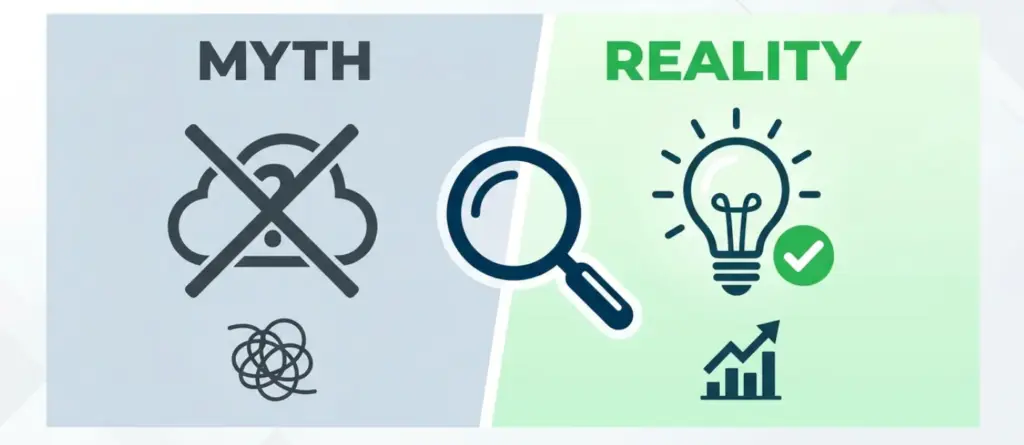
THE ADVICE EVERYONE GIVES VS WHAT ACTUALLY WORKS
Let’s drag some common advice out into the light.
- “Just clear your cache and temporary files.”
Why it’s overrated: Disk cleanup helps when your drive is nearly full or when there’s a ton of junk, especially on HDDs. But it doesn’t magically fix a laptop starved for RAM or throttled by heat. Windows’ disk cleanup and tools like it are useful, but vendors themselves list them as one of many steps, not the fix.
What actually works: Clean up storage and check free space. Aim for at least 20% free on your system drive. While you’re there, uninstall software you never use from Settings > Apps or Control Panel, so it stops updating and hogging resources. - “You need a new laptop.”
Why it’s lazy: Sometimes true, but thrown around way too early. Many slow machines are being held back by a single bottleneck: mechanical hard drive, 4–8 GB of RAM, or a clogged cooling system. Intel, HP, Dell, and Microsoft all publish pages full of software‑level optimizations and simple upgrades long before “replace it.”
What actually works: Check the basics first: Task Manager usage, startup apps, storage type, and temperatures. If you’re on an HDD, upgrading to an SSD is a huge leap. If you’re stuck at 8 GB RAM and constantly swapping, a RAM upgrade is more honest than pretending you can “optimize” your way around it. - “Install this one optimization tool, it will fix everything.”
Why it’s risky: Most “PC booster” apps just automate things Windows already does: disabling startup items, cleaning temp files, tweaking visuals. Some add their own background services and ironically slow things down or show annoying ads. They rarely solve deeper issues like failing drives, overheating, or low RAM.
What actually works: Use the built‑in tools you already have:
- Task Manager for startup and process control.
- Disk Cleanup or Settings > System > Storage for cleaning.
- Windows Security for malware scans.
Combine those with one or two manual tweaks like adjusting visual effects for performance and you’ve basically done what the “optimizer” would, without adding more junk.
- “Just close your tabs and apps more often.”
Why it’s incomplete: Yes, fewer tabs help, especially on low RAM machines. But the real problem is not you being “disciplined.” It’s apps defaulting to stay open, run in the tray, and start with Windows. Background processes and startup programs have a bigger impact than one extra YouTube tab.
What actually works: Ruthless startup control. Use Task Manager’s Startup tab to disable anything you don’t absolutely need on boot. Check background services like launchers, cloud sync, and “updaters,” and shut them down unless you actively use them. Then, yes, also don’t keep 65 tabs of documentation open if you don’t need them right now.
If something sounds too easy — “click this and your PC is new again” — it’s probably marketing or a half‑truth. Real fixes are a combination of cleaning, configuring, and sometimes admitting your hardware has limits.
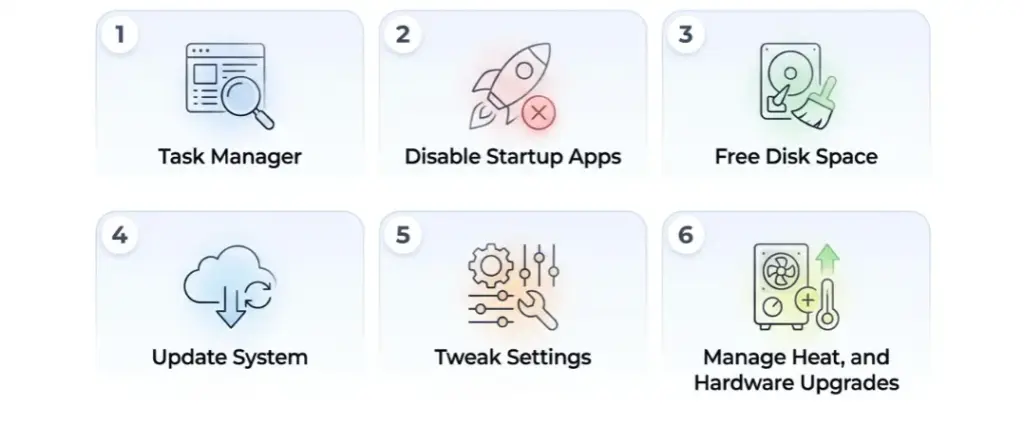
THE PRACTICAL PART WHAT TO ACTUALLY DO
Here’s the no‑nonsense checklist you can follow tonight.
- Open Task Manager and identify the real bottleneck.
Hit Ctrl + Shift + Esc on Windows. Look at the Processes tab and sort by CPU, then Memory, then Disk. If one app is hogging everything, close it or uninstall it if you barely use it. If nothing stands out but Memory or Disk is constantly high, that points to deeper issues like low RAM or slow storage. - Disable unnecessary startup apps.
Go to Task Manager’s Startup tab. Disable launchers, updaters, cloud clients, and anything you don’t need the second your PC boots. Big names like HP, Intel, and Microsoft all emphasize startup management as a core performance step. This directly speeds up boot times and reduces random background load. - Free up disk space and remove junk.
On Windows, either run Disk Cleanup or open Settings > System > Storage to see what’s eating space. Uninstall games you’re not playing, remove “trial” software, and delete old installers. HP recommends keeping roughly 20% of your drive free, especially on laptops, to avoid slowdowns. - Update your system and scan for malware.
Open Settings > Windows Update and install pending updates. Updates fix bugs and sometimes boost performance or stability. Then open Windows Security, run a full system scan, and clean anything suspicious. A full scan might take a while, but malware is a classic cause of weird slowdowns and random disk spikes. - Tweak performance settings and visuals.
You can turn off heavy visual effects and animations so your PC spends less effort on eye candy. Guides and videos often recommend using the Performance Options menu on Windows to pick “Adjust for best performance,” which disables most animations. This especially helps low‑end CPUs and integrated graphics where every bit of overhead matters. - Manage heat and airflow.
If your laptop gets hot and then slows down under load, you’re very likely hitting thermal throttling. Clean the vents with compressed air, avoid using it on soft surfaces, and consider a cooling pad if you game or run heavy workloads often. Tools like HWiNFO or MSI Afterburner can confirm if throttling is happening, but even without them, loud fans + slowing performance is a strong hint. - Plan hardware upgrades if the bottleneck is permanent.
If after all of this you still sit at high RAM usage or disk usage with just your normal workload, it’s time to upgrade. Vendors highlight SSD upgrades and RAM increases as the most impactful ways to speed up older machines. For a student doing AI and dev work, going to 16 GB RAM and putting the OS on an SSD is often the difference between “barely coping” and “usable for another 2–3 years.”
Pick two or three of these to do today, then revisit the rest later. You don’t have to fix it all in one evening, but you do have to start.
QUESTIONS PEOPLE ACTUALLY ASK
Sudden slowness usually means something changed: a new app, an update, a background scan, or malware. Common culprits are Windows updates running in the background, antivirus scans, or one new program using all your CPU, RAM, or disk. Open Task Manager, sort by CPU, Memory, and Disk, and see what jumped to the top. If usage is high even when nothing obvious is open, run a malware scan in Windows Security and check for pending updates.
You rarely have “nothing” open. Startup apps, cloud sync, launchers, and update helpers run silently in the background. Windows and laptop vendors consistently point at too many background programs and startup items as a major cause of slow laptops. Open Task Manager’s Processes and Startup tabs to see what’s actually running and disable anything you don’t need on boot. You should see an improvement on the next restart and during normal use.
Yes, dramatically, especially if you’re coming from a mechanical hard drive. SSDs offer much faster file access and boot times than HDDs because they use flash memory instead of spinning disks. HP and other vendors list hard drive issues and slow storage among the top reasons laptops feel slow, and they actively recommend SSDs as a key performance upgrade. You’ll notice faster startup, quicker app launches, and less stuttering when the system accesses files.
If your system feels sluggish even when you think you closed everything, background apps are a prime suspect. Task Manager will show you processes that are consuming CPU, memory, or disk, including things like cloud sync tools, launchers, and indexing services. Microsoft, PC performance guides, and even gaming articles all recommend checking and disabling unnecessary startup apps to reclaim resources. If performance improves after disabling or closing them, you found your culprit.
Common signs: your laptop gets hot, fans get loud, and performance drops after a few minutes under load. Thermal throttling is a built‑in mechanism where the CPU or GPU slows down to avoid overheating. Hardware guides recommend monitoring temperatures and checking for throttling with tools like HWiNFO64, MSI Afterburner, or GPU‑Z; they let you see if the CPU/GPU is reducing clocks as temperatures rise. If that’s happening, cleaning vents, improving airflow, or using a cooling pad can help.
If your specs are decent but FPS is low, check for background apps hitting your CPU or disk, like game launchers, overlays, antivirus scans, or cloud sync services. Gaming‑focused articles highlight how storage‑heavy processes like indexing or antivirus can cause stutters and frame drops, especially on slower drives. Also watch temperatures: if your GPU or CPU overheats, they will throttle and lower FPS. Closing overlays, disabling unnecessary background apps, and ensuring good cooling often stabilizes performance.
For basic coding and light browsing, 8 GB can work, but it’s tight for heavy dev stacks, multiple containers, and AI tools. When RAM is low, your system starts using storage as virtual memory, which is much slower and causes stutters. Performance guides and vendors repeatedly list insufficient RAM as a core reason laptops slow down when multitasking. If you constantly sit at high memory usage in Task Manager, upgrading to 16 GB is the honest fix.
If videos stream fine and downloads are okay, the issue is likely the device, not the network. PC performance articles differentiate clearly between slow internet and a slow computer, pointing to high CPU/RAM/disk usage, overheating, and failing drives as separate issues. Use a speed test to confirm your internet is normal, then inspect your PC: Task Manager usage, storage health, free space, and temperatures. Fixing those gives you responsiveness back even if your bandwidth is already fine.
SO WHERE DOES THIS LEAVE YOU
If your computer feels slow, it’s not a moral failing or some mystical curse. It’s a very boring combination of limited hardware, greedy software, and background processes that don’t care about your deadline. The upside of that: boring problems have practical fixes.
You don’t need to become a sysadmin. You just need to know where to look and what to turn off. Start with what you can control today: check Task Manager, kill obvious hogs, clean up storage, and strip down startup apps. If your machine still chokes under your normal workload, admit that your use case has outgrown the hardware and plan an upgrade instead of suffering quietly.
If you do one thing today, make it this: open Task Manager, sort by CPU, Memory, and Disk, and map what you think you run versus what actually runs. That gap is where most of your performance is going. It’s not perfect or easy, and no fix will suddenly turn a budget laptop into a workstation, but you can absolutely drag your current machine from “rage‑inducing” to “good enough to survive finals week.”
You made it all the way here, which means two things: your computer is slow enough to be painful, and you care enough to do something about it. Honestly, that combo is rare. Most people just complain and keep 47 things in startup forever.
If you take anything from this, let it be that you’re not crazy for expecting your machine to keep up with your brain. You just have to treat performance like a resource problem instead of a mystery. Clean up the junk, watch your resources, fix what’s clearly broken, and then — if needed — invest in the upgrades that match how you actually work. This isn’t about making your laptop “perfect.” It’s about making it just fast enough that it stops getting in the way of the stuff you actually want to build.



[…] iOS update. Updates aren’t just about new features – they patch security holes and often improve performance, so your freshly decluttered device runs as smoothly as […]
[…] but no display, and Windows not loading. Later, we’ll return to the most overlooked step—using Safe Mode and Windows’ own recovery tools early, before you start pulling […]