What’s Causing Your Devices to Feel Slower and How to declutter digital files
You’re not alone if your laptop desktop appears to be a digital landfill or if your phone keeps alerting you that storage is full. The majority of us amass gigabytes of duplicate downloads, apps we opened once and never used again, and forgotten screenshots. I recently looked at my own “recently deleted” photo album and found it was holding onto 8 GB of images I’d already thrown away – which honestly says everything about how invisible digital clutter can be.

It’s not necessary to be a minimalist or dedicate a whole weekend to cleaning when learning how to simplify digital assets. To make your gadgets seem quick, well-organized, and truly usable again, you need to develop a simple, consistent regimen that you follow every few months. I’ll walk you through the identical procedure I use on both my Mac and iPhone in this tutorial, along with the tools that make it nearly painless and the little routines that prevent chaos from returning.
Let’s get into it.
Before you delete a single file, take a snapshot of where you actually stand. This gives you a baseline and, more importantly, the satisfying “before and after” that makes the whole process feel worthwhile.
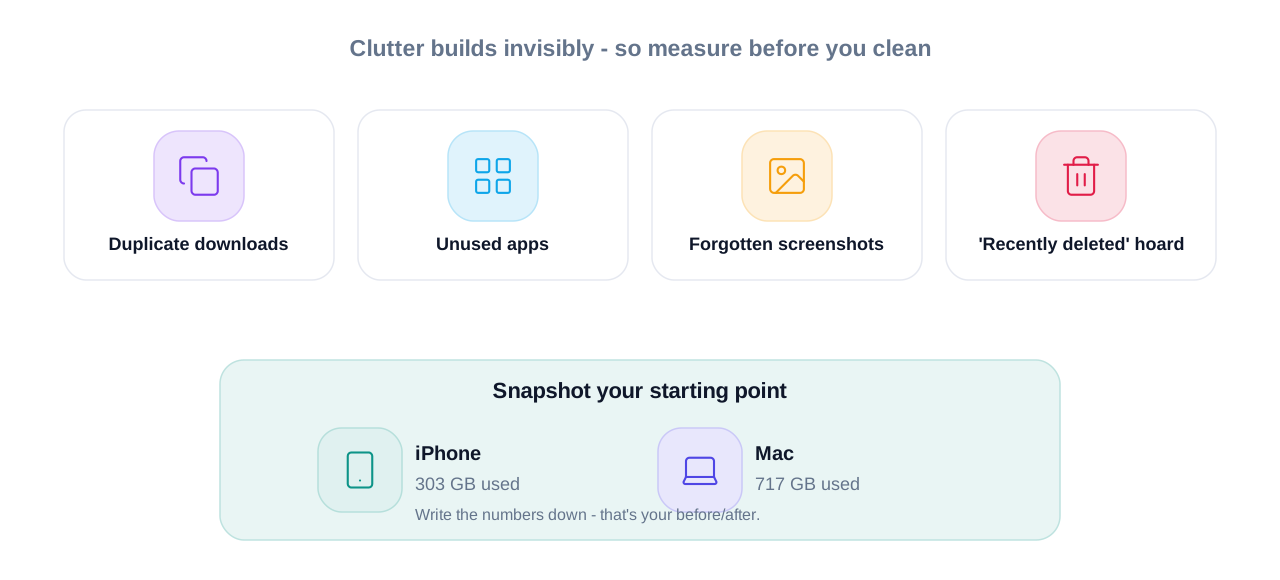
When I started, here’s what I was working with:
- iPhone: 303 GB used, with 208 GB free
- Laptop (Mac): a staggering 717 GB used
Seeing those numbers laid out is a little confronting – especially the laptop. But that initial discomfort is useful. It’s the motivation that turns “I’ll clean it up someday” into “I’m doing this right now.” If you juggle a job, side projects, or content creation like I do, your storage tends to fill up quietly in the background until one day nothing works smoothly anymore.
On iPhone, check this under Settings → General → iPhone Storage. On a Mac, head to Apple menu → System Settings → General → Storage. Write the numbers down. You’ll thank yourself later.
How to Declutter Digital Files on Your Phone
Your phone is where most people feel the clutter first, so it’s the perfect place to begin. The good news is that one category almost always delivers the biggest win.
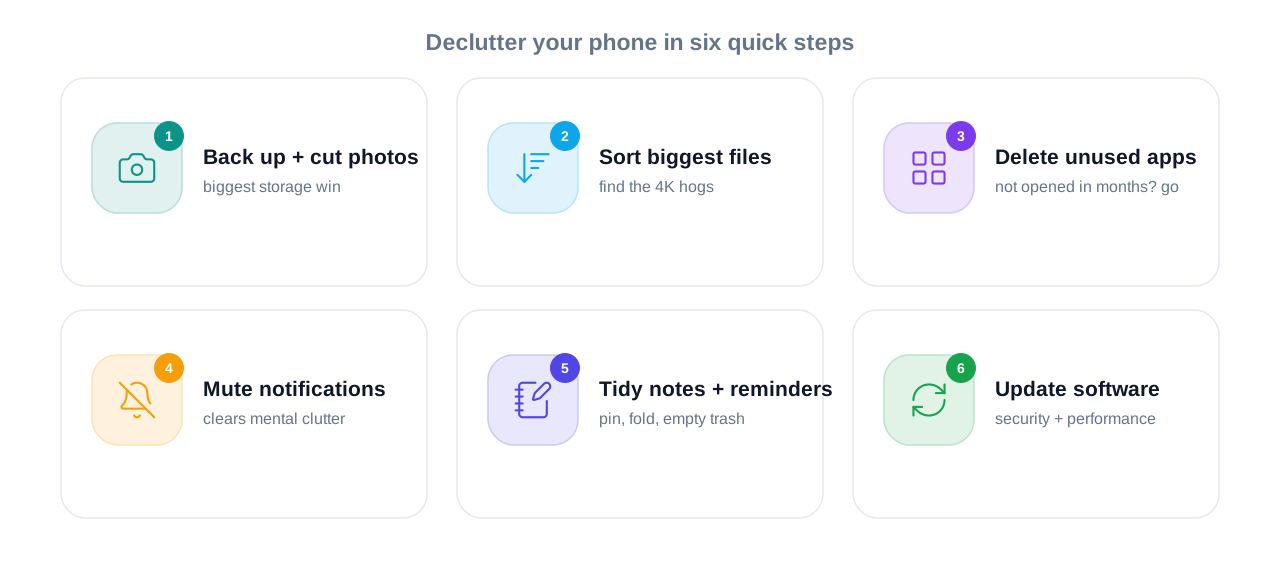
Step 1: Tackle Photos First
Photos and videos are the number-one storage hog on nearly every phone, which makes them the single most effective place to start when you want to declutter digital photos. The challenge is that we hesitate to delete pictures because we’re scared of losing something important.
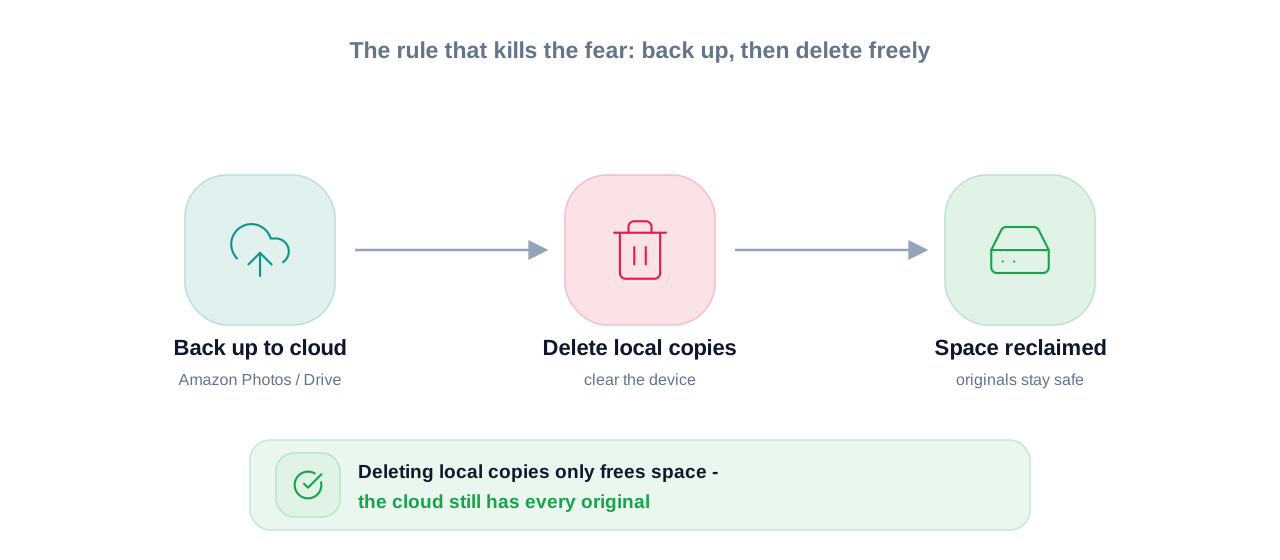
The solution is to back everything up first, then delete freely. I use Amazon Photos, which offers unlimited photo storage for Prime members (roughly $11/month with Prime). Once your photos are automatically backed up to the cloud, you can clear them off your device without a second thought.
This is exactly how to declutter digital photos without the anxiety: the originals live safely in the cloud, so deleting the local copies just frees up space. In one pass, I deleted 417 photos – a mix of unflattering gym progress shots, skin-condition photos, and a graveyard of random screenshots – and dropped from 303 GB to 295 GB.
Tip: After backing up, filter your camera roll to keep only your videos on the device. Videos are usually the most painful files to lose and re-download, and your photos are already safe in the cloud.
Step 2: Hunt Down Your Biggest Files
Here’s a feature most people overlook: under iPhone Storage, you can sort your photos and videos by file size, largest first. Instead of scrolling endlessly, you go straight to the space-hogging culprits – that 4K video you forgot about, or the long screen recording you never needed.
While you’re at it, check your large message attachments. Group chats love to fill your phone with high-res images and videos you’ll never look at again. Clearing these is a quick secondary win.
Step 3: Delete Apps You Actually Don’t Use
Scroll through every app and ask one honest question: Have I opened this in the last few months? If the answer is no, delete it.
I personally prefer full deletion over “offloading.” Offloading keeps the app icon and your data while removing the app itself – but if I haven’t used something in months, I’m probably not coming back to it. Full deletion keeps things genuinely clean. (That said, offloading is a fine middle ground if you’re nervous about losing app data, so do what feels right for you.)
Step 4: Turn Off Notification Noise
This step won’t free up storage, but it does something just as valuable: it clears mental clutter. A screen full of red badges and constant pings creates a low-level sense of chaos every time you pick up your phone.
Go app by app through Settings → Notifications and switch off anything non-essential. Shopping apps, travel apps, and marketplaces are usually safe to silence. I keep notifications on for the essentials – Messages, Phone, Calendar, and a few work tools – and turn off badges for nearly everything else, reserving them only for things I truly can’t miss.
Step 5: Clean Up Notes and Reminders
Your Notes app is probably hiding a mess of half-finished thoughts and outdated lists. Spend a few minutes to:
- Delete or secure any sensitive notes for privacy
- Pin the notes you reference often so they’re always at the top
- Group related notes into folders
- Empty the “Recently Deleted” folder to reclaim space
For Reminders, the trick is to keep templates that match your current life. I maintain reusable lists for groceries and packing, and I delete anything outdated. A reminder template only saves you time if it actually reflects what you need today.
Step 6: Update Your Software
Finish your phone cleanup by installing any pending iOS update. Updates aren’t just about new features – they patch security holes and often improve performance, so your freshly decluttered device runs as smoothly as possible.
How to Declutter Digital Files on Your Laptop
With your phone handled, it’s time for the bigger beast. The same principles apply, but a laptop benefits from a dedicated cleanup tool to do some of the heavy lifting.
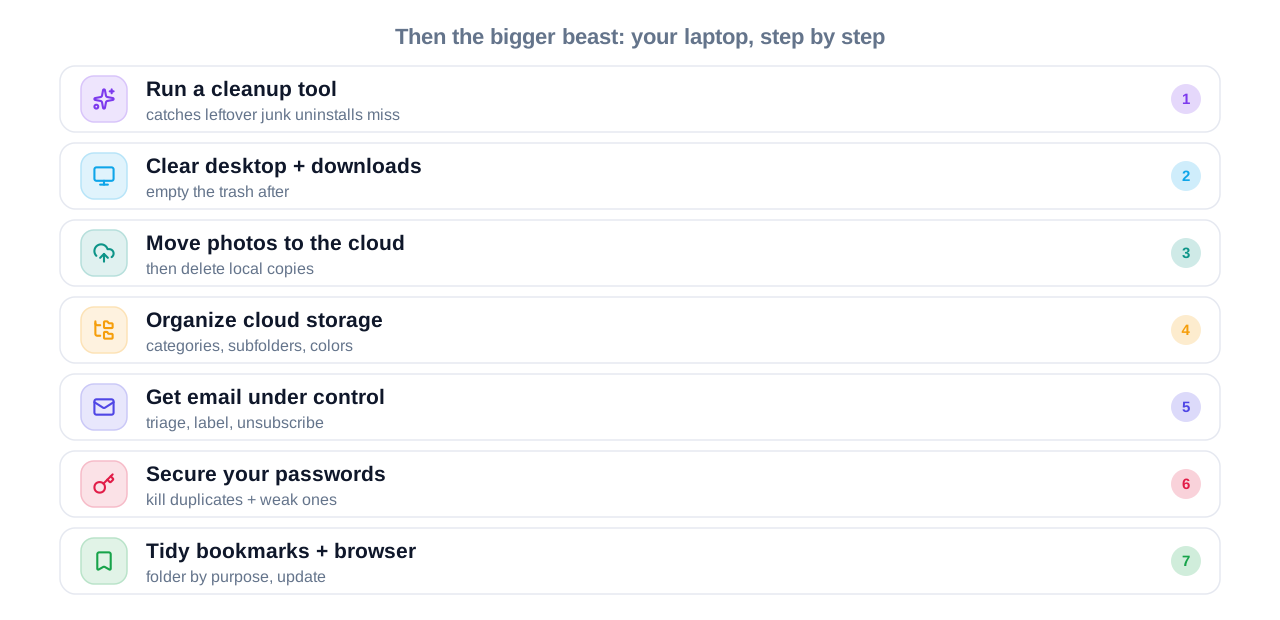
Step 1: Use a Cleanup Tool to Do the Heavy Lifting
To learn how to digitally declutter a Mac efficiently, a maintenance app saves a lot of manual digging. I use CleanMyMac, which offers a 7-day free trial and bundles several useful functions into one clean interface:
- Application cleanup (including leftover files normal uninstalls miss)
- A speed-boost feature to clear background junk
- Malware and virus protection
- One-click storage cleanup
A genuinely nice interface matters more than you’d think – a satisfying, visual tool makes you want to keep cleaning. That said, a tool is an accelerant, not a replacement for the manual sorting below.
Step 2: Clear Your Desktop and Downloads Folder
These two folders are where files go to be forgotten. Start with the desktop: delete what you don’t need and empty the trash. The instant visual payoff here is honestly addictive.
Then open your Downloads folder and brace yourself. I deleted around 3,000 files in one sweep. The key is trusting your backups – my important work already lives in cloud services and project-specific tools like Google Drive, Canva, Final Cut, and CapCut, so the local downloads were just duplicates and disposable clutter. Just be careful not to delete something genuinely irreplaceable in the process (I almost lost an important screen recording).
When you’re done, both folders should be empty and calm.
Step 3: Move Photos to the Cloud
Just like on your phone, photos are likely your laptop’s biggest space drain. Upload them to cloud storage – I use Google Drive – then delete the local copies and empty the “Recently Deleted” section to fully reclaim the space.
Step 4: Organize Your Cloud Storage Properly
Freeing up space is only half the job. If you want to know how to organize digital files and folders so they actually stay organized, this is the step that does it. A messy cloud drive is just relocated clutter.
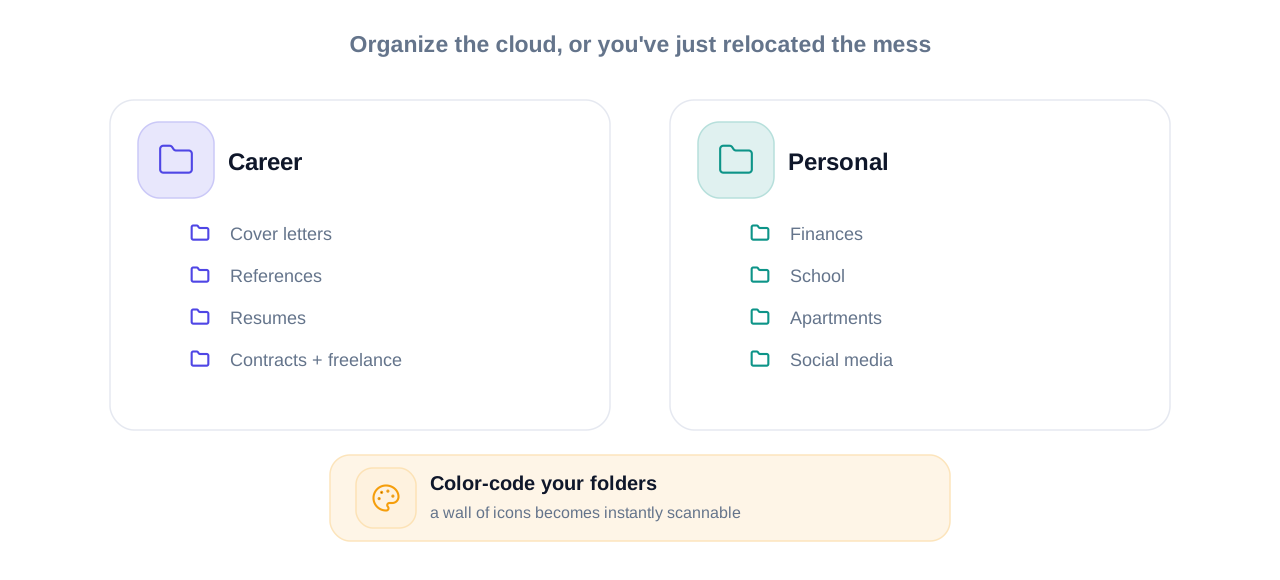
I structure mine into clear top-level categories and then go deeper from there. For example:
- Career: career assets, job applications, internship files, contracts, and freelance/influencer work
- Personal: apartments, finances, school, dance, social media management, and more
Within my job-applications folder, I keep subfolders for cover letters, references, and resumes. The single best habit here is color-coding your folders – it turns a wall of identical icons into something your eye can navigate instantly. As you go, delete anything outdated, like old marketing files or expired email signatures.
If you consistently run out of room, a paid Google Drive upgrade is worth it. Cheap storage that’s well-organized beats free storage you can’t navigate. For a complete end-to-end plan covering audit, folder maps, and naming rules, see my step-by-step digital declutter system.
Step 5: Get Your Email Under Control
Your inbox is a form of digital clutter too. A few targeted changes make a huge difference in how you organize digital files across your email:
- Personal inbox: switch to an “unread first” layout so you can quickly triage what to delete or archive
- Business inbox: use a “starred first” view so only important, active emails sit front and center
- Color-code your labels for fast visual sorting
- Merge duplicate labels – for example, combining overlapping “contracts” and “completed brand deals” folders
Then use Gmail’s built-in manage subscriptions tool to mass-unsubscribe from newsletters and promotional spam. This is the move that keeps your inbox clean long after the cleanup ends.
Step 6: Secure and Simplify Your Passwords
While you’re organizing, open your password manager – I use LastPass – and check for duplicate or weak passwords. Consolidating logins and making sure your saved addresses and payment details are current improves both your security and your day-to-day convenience (faster autofill at checkout is a nice bonus).
Step 7: Tidy Your Bookmarks and Browser
Finally, clean up that overflowing bookmarks bar. Group links into folders by purpose – work, shopping, references – so you can actually find things. And if your browser prompts you to update, do it. Keeping Chrome or your browser of choice current is a small habit that supports everything else.
The Results: What Decluttering Actually Achieves
After running through this routine, my iPhone dropped from 303 GB to 295 GB used – about 8 GB recovered, with the bigger win being a phone that simply feels lighter and calmer to use.
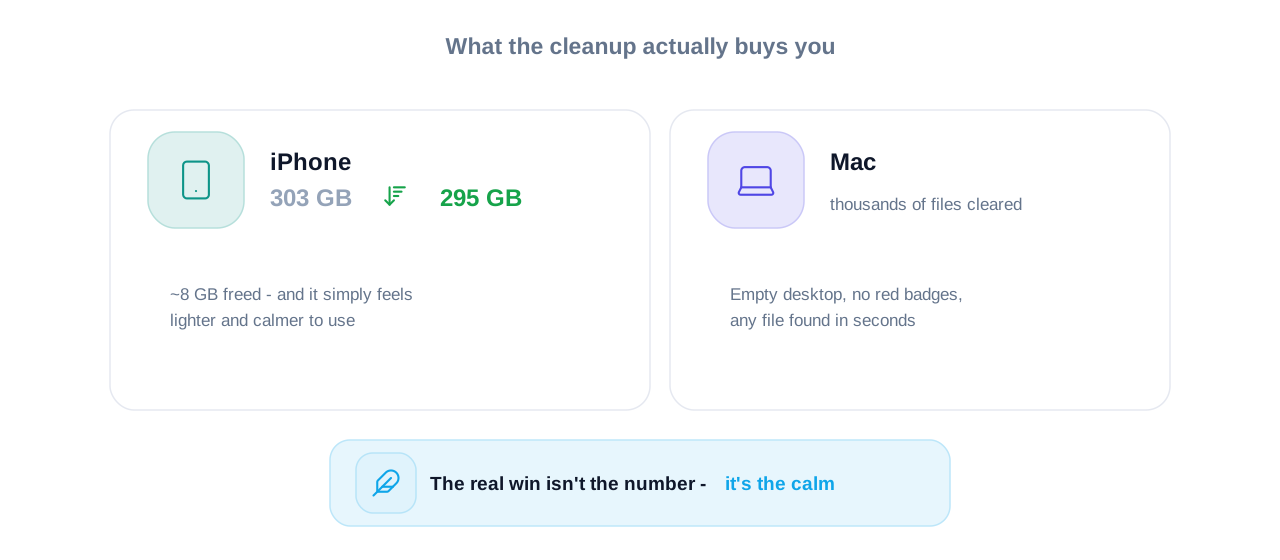
My Mac, after clearing thousands of downloads and offloading photos to the cloud, had dramatically more breathing room. But the real payoff isn’t just the number. It’s opening your laptop to an empty desktop, scrolling a phone without a sea of red badges, and finding any file in seconds. That’s what makes it worth repeating every few months.
Best Practices to Keep Your Devices Clutter-Free
A one-time cleanup is great. A digital file system that never gets cluttered is better. Here are the habits that keep the clutter from returning:
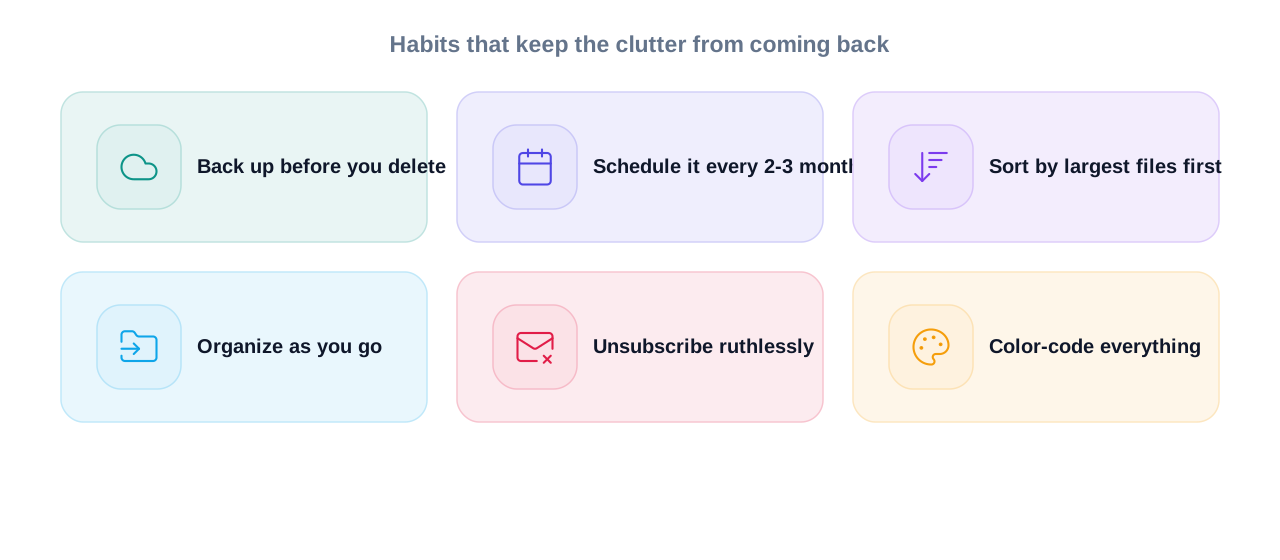
- Back up before you delete. Cloud storage removes the fear that stops most people from clearing space.
- Schedule it. A quick declutter every two to three months prevents the overwhelming buildup.
- Use the “largest files first” sort. It targets the items that actually move the needle.
- Organize as you go. Drop new files into the right folder immediately instead of letting them pile up.
- Unsubscribe ruthlessly. Every newsletter you cut is one less source of future clutter.
- Color-code everything. Visual cues make folders and labels effortless to scan.
Common Digital Decluttering Mistakes to Avoid
Even with good intentions, a few missteps can undo your hard work – or cost you something important. Watch out for these:
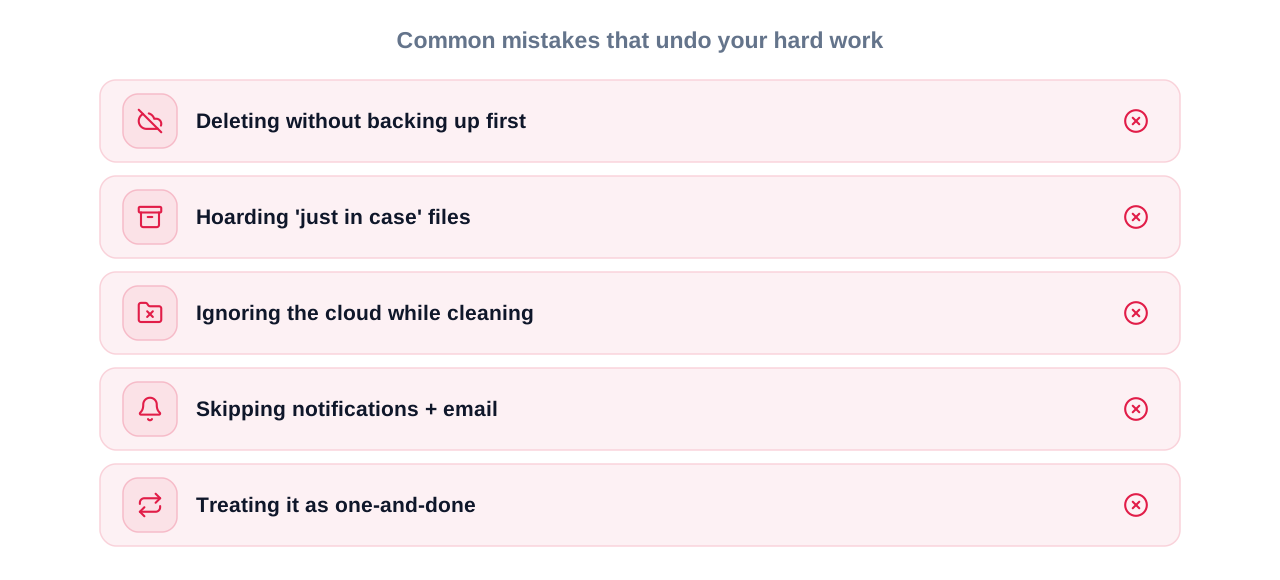
- Deleting without backing up first. Always confirm your photos and key files are safely in the cloud before clearing them locally.
- Hoarding “just in case” files. If you haven’t touched it in a year and it isn’t legally or financially important, it’s probably safe to let go.
- Ignoring the cloud while cleaning the device. Moving clutter from your phone to a disorganized Google Drive isn’t decluttering – it’s relocating the problem.
- Skipping notifications and email. Storage is only one type of clutter. Mental clutter from constant pings and a chaotic inbox matters just as much.
- Treating it as one-and-done. Without a recurring routine, you’ll be right back where you started in a few months.
Every two to three months is a healthy rhythm for most people. Doing it regularly keeps each session short and prevents the overwhelming buildup that makes cleanup feel like a chore.
Back them up first using unlimited or generous cloud storage like Amazon Photos or Google Drive, then delete the local copies. Once your photos are safely in the cloud, removing them from your device only frees up space — it doesn’t lose anything.
Both work, but deleting is the cleaner option if you genuinely won’t use the app again. Offloading keeps your data while removing the app, which is useful if you’re unsure — but for apps you’ve abandoned, full deletion keeps things tidier.
For Mac users with heavy clutter, a tool like CleanMyMac speeds up the process and catches leftover files that manual cleanup misses. Most offer free trials, so you can test it before committing.
Create clear top-level categories (like Career and Personal), use subfolders for specifics, and color-code everything for fast navigation. The real key is putting new files in the right folder immediately rather than letting them pile up.
Freeing up storage and installing updates can improve performance, especially when your device was nearly full. Clearing background junk and outdated apps also helps your system run more smoothly.