
The Ultimate Step-by-Step Guide to Decluttering Digital Files in 2026
If your laptop, phone, and cloud drives feel like a digital junk drawer, you’re in the right place. You’re not “bad at organizing”; you just never got a clear, end‑to‑end system that works in real life. By the end of this guide, you’ll know exactly how to declutter your digital files, set up a simple structure, and actually keep it clean in 2026. One big reason this feels confusing is that most advice mixes emails, apps, photos, and documents without telling you what to touch first or how deep to go.
Here, we’ll treat your digital world like a real workspace: you’ll clear the mess, design the shelves, label everything, and then create habits so it never collapses again. You’ll see real examples for students, junior developers, and young professionals who juggle laptops, phones, and cloud accounts. This site focuses on AI, tech, and digital productivity, so the lens is very practical: fewer clicks, faster search, smoother work. We’ll also tackle something most guides skip: how to handle the fear of deleting files and the “what if I need this someday?” voice in your head. If you’ve ever wasted 20 minutes hunting for “final_final_v3.pdf,” this article is written for you.
What Is Digital File Decluttering and Why It Matters Right Now
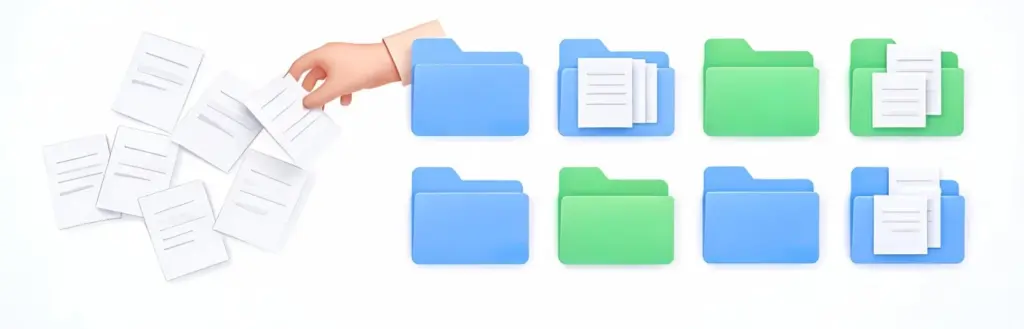
Digital file decluttering means systematically deleting, compressing, and reorganizing the files scattered across your devices and cloud so you can find what you need in seconds. It’s not just “cleaning your desktop”; it’s redesigning how information flows through your digital life. Instead of letting files pile up wherever they land, you decide where they live and when they expire. In practice, this covers your downloads folder, documents, project folders, screenshots, photos, and even exports from AI tools.
This matters more in 2026 than it did even a few years ago. Global data volume is doubling roughly every two years, and by 2025 it’s projected to reach around 175 zettabytes, which means the amount of stuff you’re “saving for later” is exploding too. At work, employees can lose 15-30 minutes a day just searching for documents, which adds up to almost two weeks a year of wasted time. For a student or early‑career professional, that lost time is the difference between feeling on top of things and constantly working at 1 am
There’s also a mental side. Digital hoarding is now a researched behavior and is linked to stress and lower well-being when people feel unable to delete or organize their files. When you sit down to study or code and your desktop is flooded with random files, your brain has to filter noise before you can start. One thing you’ll notice when you actually declutter is that your device feels “quiet” in a good way, even though nothing physically changed on your desk. We’ll get into exact numbers on time saved and storage freed in the benefits section, so keep that in mind as a reward while you read.
Who This Is For and Who Should Skip It

This guide is for people whose digital life is already a bit messy, but not totally out of control yet. If you’re a college or grad student juggling PDFs, assignments, Git repos, and downloads across a laptop and a phone, this is directly for you. If you’re in your first few years of work in tech, design, marketing, or any knowledge job where you touch many files daily, you’ll get a big productivity boost from the system here. It’s also great for creators who constantly export images, videos, and project files and then never clean them up.
Here are some typical readers:
- Students and AI/tech learners
You have lecture slides, project reports, datasets, code files, and reference PDFs scattered everywhere. You also use tools like Notion, Drive, and GitHub, so files live in many places and you’re tired of losing track of what’s where. - Early-career professionals
You get drafts from colleagues, export reports, and download assets almost daily. Your downloads folder is a chaos zone, and you sometimes send the wrong version in a meeting because your naming is random. - Freelancers and side‑project builders
You keep client files mixed with personal experiments and course material. Projects finish, but their files hang around forever, slowing down backups and making you nervous about deleting anything. - Anyone constantly hitting storage limits
If your phone complains about low storage every few weeks or your cloud drive is nearly full, this guide will help you avoid paying for more space you don’t really need.
People who should probably skip this: if your main issue is cybersecurity, legal archiving, or compliance-heavy document control, you need a stricter, regulated system than what we’ll cover here. Also, if you never save files at all and live entirely inside web apps, your problem isn’t decluttering but capturing and backing up important work. If you are an 18–25‑year‑old AI or tech learner who wants faster, calmer digital work, this article is written for you.
How It Actually Works Complete Process
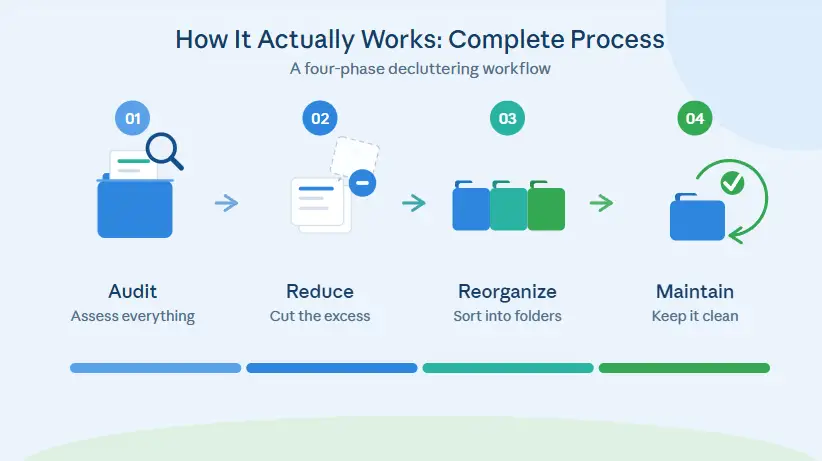
The process has four main phases: audit, reduce, reorganize, and maintain. You don’t need a whole weekend; you can do it in focused 60-90 minute blocks. The most important rule is to tackle one “universe” at a time: start with your main computer, then your phone, then your main cloud drive. When you try to fix everything everywhere at once, you burn out before you see any payoff.
Step 1: Run a quick digital audit
Start by listing the main places your files live: “Laptop > Documents,” “Downloads,” “Desktop,” “Google Drive,” “OneDrive,” “External HDD,” and so on. On your main device, open your file explorer and sort by size and by “Date modified” to see where the bloat is. On cloud storage, look at total used storage and which folders are the biggest. When you actually do this, you’ll find that a few folders (like Downloads or an old “Backup” directory) are responsible for most of the mess.
Step 2: Create a temporary “sorting zone”
Before deleting anything, create one folder on each platform called something like “_INBOX_2026” or “_To‑Sort.” This is where you drag uncategorized files from the desktop and download as you go. The point is not to perfectly file everything right away, but to get visual clutter out of your way so you can think. Give yourself a deadline: for example, everything in that inbox must be processed within 7 days, or it gets archived to a dated “Archive_2026Q2” folder.
Step 3: Delete aggressively but safely
Now you reduce. Start with obvious junk: duplicate installers, old exports, random screenshots, and large media files you clearly don’t need. Work in 20‑minute sprints by category: “Screenshots,” “Downloads,” “Old class folders.” Empty the recycle bin or trash after each sprint, so you feel progress and recover storage immediately. Digital declutter campaigns have shown that even simple actions like this at scale can delete enormous amounts of data; for example, a global digital cleanup initiative reported over 1.8 million GB deleted in one campaign.
Step 4: Design your high‑level folder map
Next, you create a simple, stable folder structure that will hold almost everything. For a tech‑focused student or worker, a good starting point is: “Work/Study,” “Personal,” “Assets,” and “Archive.” Inside “Work/Study,” you might have “Courses” or “Projects,” then one folder per course or project. Inside each project, separate “Docs,” “Code,” and “Media” instead of throwing everything together. You’ll know the structure is too complex if you regularly drill more than three levels deep to find a file.
Step 5: Build a file naming system
This is where most guides wave their hands, but it’s what actually saves time later. Pick a pattern that includes date, topic, and version, for example: “2026‑06‑01_ProjectName_Report_v1.” Use ISO dates (YYYY‑MM‑DD) so sorting by name automatically sorts by time. When you do this consistently, you can search by project or by date without remembering the exact filename. Most people discover that just renaming a handful of “final_final” documents immediately lowers their daily stress.
Step 6: Migrate and tag strategically
Now move active files into the new structure and leave completed/old items in “Archive.” While moving, add tags or labels where your system supports them (macOS tags, Windows keywords, Google Drive labels). Tag by status (“In‑Progress,” “Reference”) or by theme (“ML,” “UX,” “Thesis”) so a single search pulls related items across projects. The piece many guides skip is that you don’t need to migrate everything; old semester folders can go straight into “Archive_2024” and stay compressed unless you actually need them.
Step 7: Lock in maintenance habits
Finally, you protect your work by setting up habits and backups. Create a recurring calendar event for a 10‑15 minute “Digital Cleanup” each week to clear downloads, rename new files, and archive finished tasks. Use cloud backup for active projects and a monthly offline backup for completed work to avoid losing important files to a laptop failure. When you actually stick to this rhythm, decluttering stops being a huge project and becomes a small, boring routine, which is exactly what you want.
Comparison Table Digital Decluttering Options Side by Side
You can approach digital file decluttering in different ways depending on your schedule, personality, and how bad things are right now.
| Name/Option | Key Feature | Best For | Limitation | Verdict |
| One‑Day Deep Clean | Full reset in a single long session | Students on break; light to moderate mess | Can be exhausting; easy to skip maintenance | Good reset, risky to sustain alone |
| Weekly 60‑Minute Sprint | Scheduled hours every week | Busy workers; ongoing projects | Takes longer to see big results | Best balance of progress and sanity |
| Continuous 10‑Minute Habit | Tiny daily cleanup after work/study | People who like routines and checklists | Hard to start if clutter is already huge | Great for staying clean once reset |
The one‑day deep clean works if you can block 3–4 hours and your clutter is annoying but not terrifying. Weekly sprints are ideal if you’re already overwhelmed, because you get visible progress without burning out. Continuous habits are perfect once you’ve gotten ahead of the mess; they prevent the quiet slide back into chaos.
Real Benefits With Numbers and Specifics
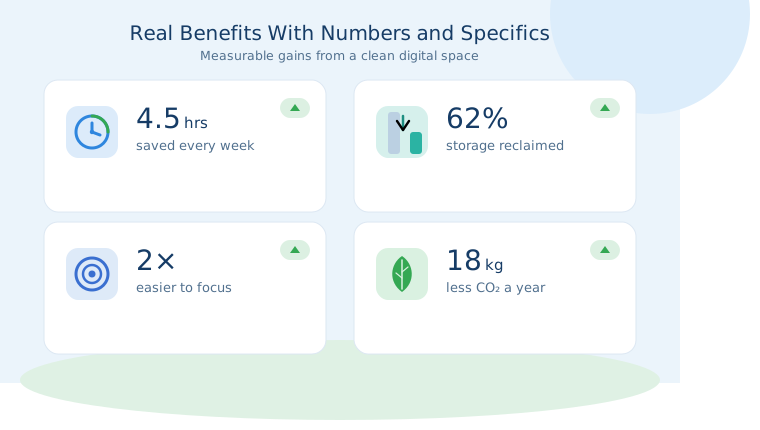
When you declutter digital files properly, the gains show up in your time, brainspace, and even money. Let’s start with time. Studies on information workers show that people can spend around 44 minutes to 1.8 hours per day just looking for files and information. Even if you cut that by only 25%, you get back at least 10–20 minutes a day, which adds up to 60–90 extra focused hours a year.
Storage is another area where the numbers surprise people. When you delete big folders of old backups, unused media, and duplicate files, it’s common to free tens of gigabytes in a single session. In large digital cleanup campaigns, participants have collectively deleted over a million gigabytes of data in one event, which hints at how much dead weight most people carry around. For you, this could mean delaying or avoiding an upgrade to a higher‑priced cloud plan or bigger SSD.
Then there’s focus. When you do this properly, you’ll find that you can sit down, open your “Current Projects” folder, and start working without scrolling past random clutter. Research on digital hoarding behavior links heavy, unstructured digital accumulation with worse daily functioning and more stress, which tracks with what many people report anecdotally. Less visual noise makes it easier to notice what matters: the one report that’s due, the one notebook you actually need. A benefit most articles skip is the boost in confidence; when you can instantly share the right version of a file in a meeting or send a professor exactly what they asked for, you feel like someone who has their life together.
Finally, there’s a subtle environmental angle. Every gigabyte stored in data centers consumes energy, so when you clean up, you slightly reduce the demand for storage and power. Some digital cleanup campaigns explicitly frame this as a climate action, highlighting how large-scale deletion of unnecessary data has a measurable impact. When you do this, you’ll find that decluttering feels less like busywork and more like aligning your tech habits with the way you want to live.
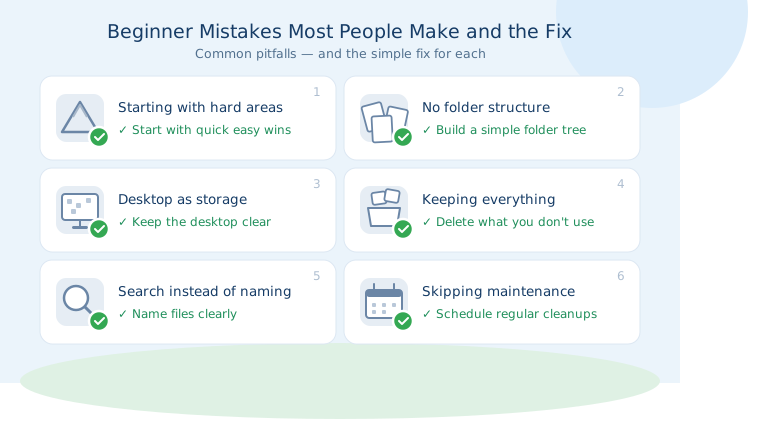
Beginner Mistakes Most People Make and the Fix
Mistake 1: Starting with the hardest area first
Many people start with their oldest, messiest folders because they feel most guilty about them. The problem is that those folders are full of sentimental files, old college work, or big collections, so you get decision fatigue almost immediately. You end up spending 20 minutes debating one folder and then quitting. The fix is to start with low-emotion, high-impact areas like Downloads and random screenshots, where you can delete quickly and build momentum.
Mistake 2: Decluttering without a structure in mind
A common pattern is dragging files into random new folders like “Stuff 1,” “Stuff 2,” or “Sorted,” without a plan. This only hides the mess and makes it harder to fix later because you forget what went where. The reason it happens is that deleting feels scary, so moving everything gives a false sense of progress. Instead, sketch a simple top-level map on paper first (“Work/Study,” “Personal,” “Assets,” “Archive”) and only create folders that match that map.
Mistake 3: Treating the desktop as a permanent filing system
Many people use the desktop as a parking lot for everything they’re working on, then never clean it. Over time, icons fill the screen, performance can slow, and finding a specific file becomes a hunt. It happens because the desktop is the easiest place to drop things “just for now.” The fix is to limit the desktop to a small number of active shortcuts or folders and move anything older than a week into your structured system or a temporary “To‑Sort” folder you process regularly.
Mistake 4: Keeping everything “just in case”
This is probably the mistake you’re making right now without realizing it. You keep almost all files because one day a professor, manager, or client might ask for them, so your storage quietly swells. The cost is slow backups, constant low storage warnings, and anxiety every time you open a drive. The fix is to set clear retention rules: for example, delete raw downloads after 30 days, keep finished project files for 2 years, and move anything older into a compressed archive.
Mistake 5: Ignoring file names and relying only on search
Search is powerful, so people dump files everywhere and hope keywords will save them. In reality, you end up remembering nothing about old files, and generic names like “Report.pdf” or “Image(4).png” make search less useful. This happens because renaming feels like extra work at the moment. The fix is to adopt a simple naming pattern and batch-rename a few important categories; once you see how fast you can find “2026‑04‑12_MLProject_Presentation_v2,” you start naming better by default.
Mistake 6: Doing a one-time clean and never maintaining
Some people manage a huge cleanup once, feel proud, and then… never touch it again for a year. Gradually, the same habits rebuild the mess, and the next cleanup feels even more exhausting. This happens because there is no system for small, regular corrections. The fix is to build maintenance into your calendar and routines: a weekly 10-minute download cleanup and a monthly 30-minute archive session are enough to keep things under control once you’ve done the main reset.
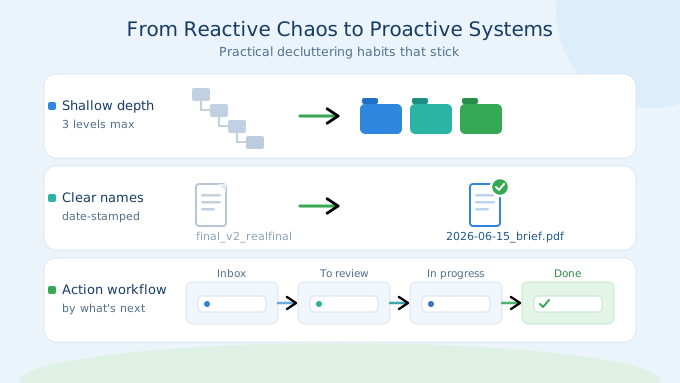
Expert Tips That Actually Work
Tip 1: Tidy by category, not by location
Instead of saying “I’ll clean my laptop today,” pick one category like “course PDFs,” “client deliverables,” or “screenshots.” Pull that category from every relevant folder into one place to decide what stays. This works because you compare similar items side by side, which makes spotting duplicates and junk much easier. It also stops you from half-cleaning twenty different folders and finishing none.
Tip 2: Use action-based folders for your workflow
Create folders based on what you do with files, such as “Inbox,” “To Review,” “In Progress,” and “Done.” When a file lands in your world, it always goes into one of these before it goes anywhere else. This mirrors how physical workflows operate and makes your digital space feel more like a well-run lab or studio. When you actually live in these folders, you spend less time thinking “Where should this go?” and more time doing the work.
Tip 3: Add dates to everything you might version
Anything you expect to revise (reports, slides, proposals, resumes) should include a date in the filename. This avoids the familiar “final_v2_realfinal” chaos. Using a format like “2026‑05‑10_Resume_v1” lets you instantly see which version you sent where. The surprising part is how much easier collaboration gets when everyone can refer to “the 2026‑04‑01 deck” instead of arguing about which “final” is which.
Tip 4: Limit folder depth to three levels
If you find yourself clicking through four or five nested folders to open a file, your structure is too deep. Long paths slow you down and make you avoid filing new items properly. Cap yourself at about three levels (for example: “Work > ProjectName > Docs”) and merge or simplify anything deeper. This is one of those rules that feels arbitrary until you’ve tried it; then you realize how much faster your navigation becomes.
Tip 5: Turn off non-essential download prompts
If every browser and app is asking you “Where to save?” every time, you’re forced to think about filing while you’re trying to focus on the task. Set a default downloads location, then batch‑process that folder during your weekly cleanup. This separation of “capture now, organize later” makes both steps less annoying. It’s the digital version of tossing receipts into a box and sorting them once a week instead of at the counter.
Tip 6: Use emojis or prefixes for visual scanning
On systems that support it, add emojis or short prefixes to key folders: Courses, Experiments, Clients.” This might sound silly, but your eyes will lock onto those symbols faster than plain text, especially when you’re stressed or in a hurry. In practice, this tiny trick makes your main folder list feel more like an organized control panel than a wall of identical names.
Tip 7: Schedule monthly “archive and forget” sessions
Once a month, set 20–30 minutes to move entire old projects or semesters into an archive folder named by year or quarter, then compress them. The goal is not to perfectly sort inside that archive, but to get inactive stuff out of your active workspace. Knowing those files are safe in a dated box makes it much easier to delete looser, low‑value items elsewhere. This is one of those habits that separate chronically cluttered people from those whose systems quietly keep working.
Tip 8: Use your email filters as a declutter ally
You don’t have to manually file every attachment you receive. Create email filters that auto-label certain senders or subjects, then routinely move important attachments from those labeled emails into your structured folders. Over time, your inbox stops being a chaotic archive and becomes more of a gateway. When you do this, you’ll find that searching for an old file becomes either “check the project folder” or “search labeled email,” not blind digging.
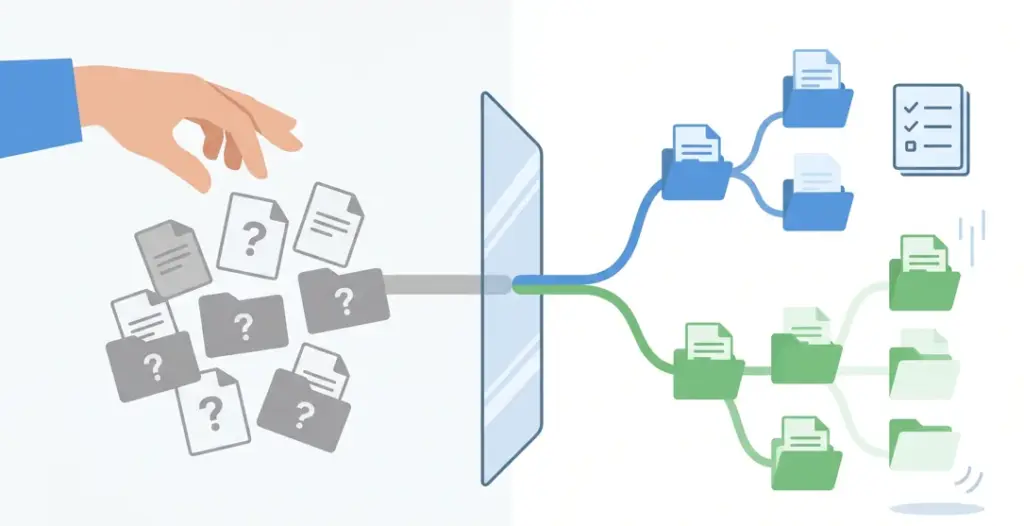
Advanced Insights What Nobody Else Tells You
Insight 1: Digital decluttering is more about decisions than deletion
On paper, deleting files is easy: select and hit delete. In reality, the friction comes from tiny decisions: “Will I ever need this?” “Is this the latest version?” “Is this safe to remove?” Each decision costs mental energy, which is why you get tired so quickly during big cleanups. Understanding this helps you design around it: you set rules in advance (like retention periods), so during decluttering you follow the rule instead of deciding from scratch each time.
Insight 2: Your file structure should mirror how your brain thinks, not someone else’s template
A lot of people copy folder systems from productivity blogs or YouTube without asking whether it fits how they actually work. If your mind groups things by project, a structure based on file type (“Docs,” “Images,” “Videos”) will always feel wrong. If you naturally think in time windows (semester, sprint, quarter), then time-based folders will feel more intuitive. The best system is one that matches your mental model, even if it looks “weird” from the outside.
Insight 3: Decluttering is a stealth productivity training program
When you regularly delete and file digital items, you’re also training yourself to make faster, clearer decisions in general. You get better at asking, “Is this useful?” “What is this for?” “When will I need it again?” That same mindset transfers to how you choose projects, courses, and even notifications. In practice, people who treat digital decluttering as a serious habit often report that they start saying no more confidently in other areas of life.
Insight 4: You can’t outsource judgment to AI or tools
AI tools and smart search make finding things easier, but they can’t decide what your life doesn’t need anymore. If you let “Search will find it” be your strategy, you slowly build a swamp of half‑relevant files, which then pollute your search results. Tools can help you spot duplicates, large files, or old items, but only you can say, “This version is good enough; the rest can go.” The more comfortable you get with that call, the cleaner your digital world stays.
Frequently Asked Questions Digital File Decluttering in 2026
Start by listing all your storage locations, then choose one device or cloud account to tackle first. Do a quick scan to identify the messiest folders, especially Downloads, Desktop, and old “Backup” folders. Create a temporary “To‑Sort” folder, delete obvious junk, and then design a simple folder structure for what remains. Finally, rename key files with clear dates and move them into the new structure, finishing with a weekly cleanup habit so things stay under control.
You don’t need to declutter every day, but you should build a regular rhythm. A weekly 10-15 minute session to clear downloads, rename new files, and archive completed work is usually enough once you’ve done a big reset. A monthly 20–30 minute session can handle bigger moves like compressing old project folders or archiving a finished semester. If your work is very file-heavy (like design or video), you may benefit from slightly longer sessions, but the key is consistency, not intensity.
There is no single “best” structure, but a good starting point is to organize around your main roles and projects. For many tech-focused users, a top level like “Work/Study,” “Personal,” “Assets,” and “Archive” works well, with projects or courses inside each. Try to keep folder depth to about three levels so you’re not clicking endlessly to reach files. The best test is whether you can explain your structure to a friend in under a minute and then quickly find any recent file without searching.
Digital hoarding usually comes from fear of needing something later or not trusting yourself to find it again. To shift out of this, set clear retention rules: for example, delete raw downloads after 30 days and archive old project folders annually. Use file naming and simple folder structures so your brain believes “If it matters, I’ll find it.” It can also help to do one “hard reset” session where you delete obviously low‑value items in bulk, so you see that nothing bad happens when you let go of junk.
It depends on what they contain and how new your other backups are. If you have multiple copies of the same folder or file, you can usually delete older duplicates once you’ve confirmed the latest version is intact and backed up. For system-level or app backups, keep at least one recent stable backup and one older baseline before deleting anything else. When in doubt, compress a backup into a single archive file and move it to an “Archive Year” folder instead of keeping five separate uncompressed copies.
Most operating systems have built-in tools or views that let you sort files by size. On your computer, open file explorer, go to key folders like Documents or Downloads, and sort by size to reveal the biggest files immediately. Some third-party tools can show you a visual “map” of disk usage, which makes it easy to spot giant folders or forgotten backups. Focus on videos, old installers, and raw media first, since they often free gigabytes with just a few deletions.
Both can work, but they serve different purposes. Cloud storage is convenient for active or shared projects because you can access files from anywhere and sync across devices. External drives are better for long‑term archiving of large, rarely accessed files, especially media or completed projects. A good pattern is to keep active work in cloud folders, then move completed projects to a labeled external drive once or twice a year, so your online storage stays lean.
The key is to choose one “source of truth” for your main folders, usually a cloud drive like Google Drive or OneDrive. Sync those folders to your main computer and keep your phone or tablet for accessing, not organizing, most files. Use consistent folder names and file naming patterns everywhere, so a project looks the same on each device. When you download something on your phone that matters, move it into the same cloud structure within a day or two so it doesn’t get stuck in app‑specific silos.
You can do a lot with just your operating system, but certain tools make the process smoother. Disk usage analyzers help you spot big folders and files at a glance, while duplicate finders can safely identify redundant copies. Cloud storage apps often include built-in suggestions for deleting large or unused items. The most important “tool,” though, is the system you design: a clear folder map, naming rules, and recurring cleanup reminders will outperform any app if you actually follow them.
Quick Summary Take This Away
Decluttering your digital files in 2026 isn’t about perfection; it’s about building a simple system you can actually maintain. You start by auditing where your files live, then you clear the worst clutter in a few specific places like Downloads and old backups. Once you’ve made space, you design a folder structure that matches how you think about your work and life, and you back that up with clear naming rules so search becomes your ally. The real win comes when you turn this into a routine: a short weekly cleanup and a monthly archive session are enough to prevent the mess from returning.
When you do this properly, you’ll feel the difference every time you open your laptop: fewer clicks, less scrolling, and almost no “where did that file go?” moments. You get back hours each month, reduce storage stress, and feel more in control of your tech. If you do just one thing after reading this, block out a 60‑minute slot this week for your first focused digital cleanup and use the steps above as your checklist.
Conclusion
Decluttering your digital files is one of those quiet skills that pays you back every single day. You’re not just deleting clutter; you’re building a clear map of your work, your studies, and your ideas so future‑you can move faster with less friction. The combination of a simple folder structure, consistent naming, and small recurring habits will give you more benefit than any fancy app or one-time marathon cleanup.
Your next step is small but important: pick one device, set a 25‑minute timer, and clear just your Downloads and Desktop into a basic structure. Once you see how much lighter that feels, you’ll have the motivation to continue with cloud storage and older folders. You already know enough to start; all that’s left is to open your file explorer and take the first decision.




[…] you skimmed down to this part first, here’s the core message: organizing and decluttering your digital files for good is less about being “naturally tidy” and more about having a simple, repeatable […]
[…] [If your phone is finally up and running, it might also be the perfect time to look into organizing your device by following our guide on decluttering your digital files for good.] […]
[…] If you consistently run out of room, a paid Google Drive upgrade is worth it. Cheap storage that’s well-organized beats free storage you can’t navigate. For a complete end-to-end plan covering audit, folder maps, and naming rules, see my step-by-step digital declutter system. […]