

10 Proven Strategies to Organize and Declutter Your Digital Files for Good
You’re probably here because your laptop, phone, and cloud drives feel like a black hole where files go in and never come back out. You search “10 proven strategies to organize and declutter your digital files for good” hoping for something more than “make folders.” You’re going to get that. By the end of this guide, you’ll have ten specific strategies you can apply today, plus a simple system to keep everything under control for years.
What This Topic Really Is and Why It Matters Right Now
When we talk about “10 proven strategies to organize and declutter your digital files for good,” we’re really talking about three things: how your files flow into your life, where they live, and when they should disappear. It’s not just about dragging icons off your desktop. It’s about designing a repeatable system so that new files automatically land in the right place and old ones stop haunting you years later. In plain terms, it’s creating a digital workspace that behaves like a well-run lab instead of a junk drawer.
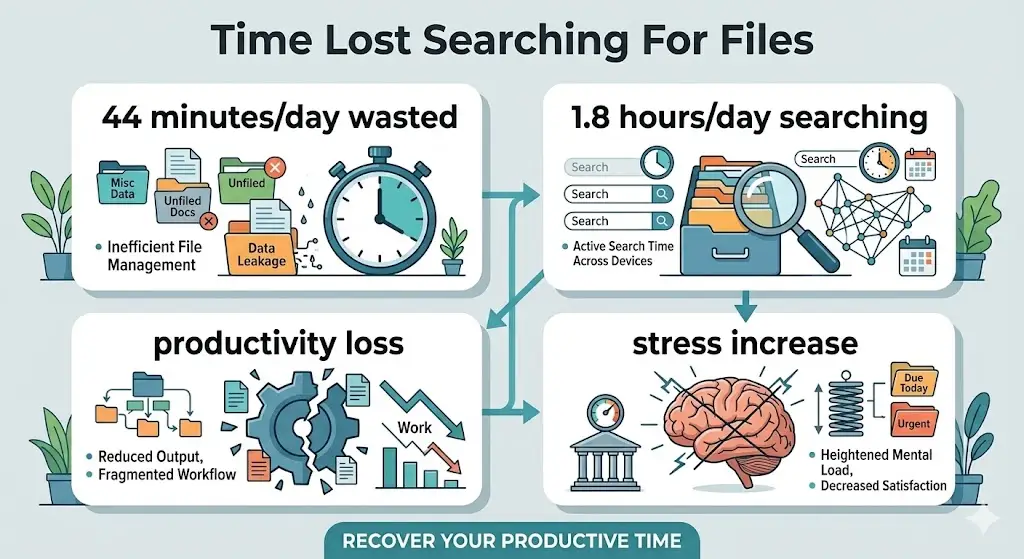
We’ll get to specific numbers on time saved and storage reclaimed later, and we’ll talk about something most guides miss: how to stop the clutter from coming back once you’ve done the hard work. That “for good” part is where these ten strategies really differ from generic tips you see everywhere.
Who This Is For and Who Should Skip It
This guide is not for everyone, and that’s on purpose. It’s written for people whose digital lives are messy enough to be annoying, but not so far gone that they need corporate‑level records management or legal archiving. If you’re 18–25, into AI or tech, and doing a mix of studying, projects, and early work, this is exactly tuned to your life. You probably switch between VS Code, Jupyter, Google Docs, Figma, and Discord without thinking, and your files have followed you through several devices and semesters.
Here’s who will benefit most:
- AI and tech students
You’re juggling lecture notes, research PDFs, code repositories, datasets, and project reports across your laptop and cloud. You need fast access to versions, not five slightly different “final” files buried in random folders. When your folders are tidy, debugging a project or revisiting a course months later stops being painful. - Early‑career developers, data folks, and analysts
You get requirements docs, CSVs, logs, screenshots, and slide decks from multiple stakeholders. Your Downloads folder is a disaster zone, and shared drives are worse. A clean system means you can respond quickly in standups and never say “Wait, give me a sec, I need to find that” in front of your team. - Creators and freelancers with side projects
You export thumbnails, reels, designs, and proposals constantly. Old client work sits next to new experiments, and you’re always bumping up against storage limits. An organized structure lets you reuse assets quickly and protect client material without mixing it with personal files. - Privacy‑conscious users
If you care about minimizing the data spread across old accounts, drives, and clouds, decluttering lets you delete sensitive files, close stale accounts, and reduce your digital footprint.
On the other hand, some people should skip this article. If your main challenge is strict legal compliance (like medical, legal, or government records), you need a specialized records management framework, not a student-oriented system. If you truly live inside a small set of SaaS apps and almost never download or store files locally, your bigger risk is not clutter but losing access if an account gets locked. If you’re a global AI or tech learner who feels slowed down by messy files and wants a system that actually sticks, this article is written for you.
How It Actually Works Complete Process
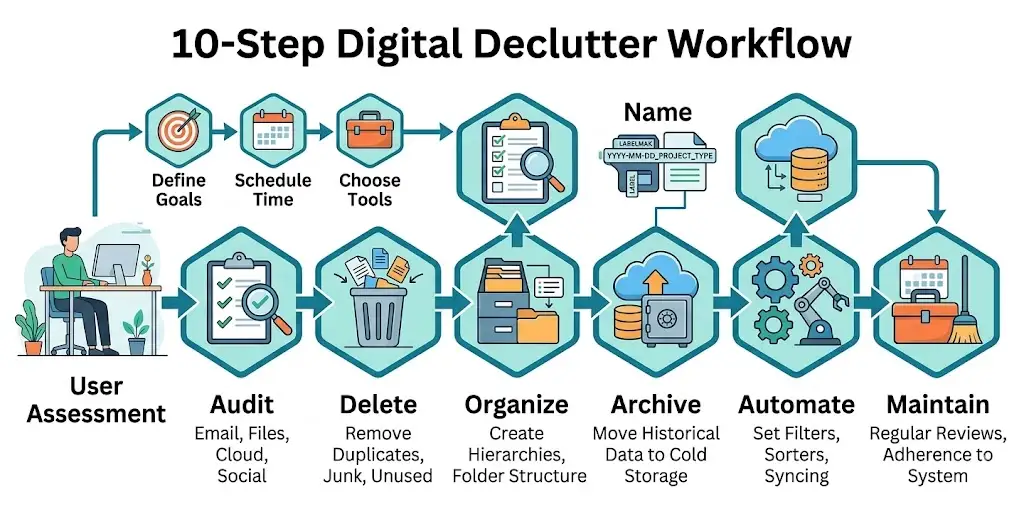
The ten strategies in this guide fit into a single process: audit, reduce, redesign, and maintain. You don’t have to execute all ten in one day, but you should follow them in a logical order, especially the first four. When you actually follow the sequence, you get faster results with less overwhelm.
Step 1: Run a full digital audit
Start by listing every place your files live: laptop SSD, external drives, Google Drive, OneDrive, Dropbox, university storage, and even random email attachments. On each device, open your file explorer and sort by size and by “Date modified” in key folders like Documents, Downloads, and Desktop. On cloud platforms, check which folders take the most space and which ones haven’t been touched in years. This audit shows you that 10–20% of locations hold 80% of the mess.
Step 2: Pick one “universe” and freeze the rest
Instead of bouncing between devices, choose one universe—say, your main laptop—and commit to finishing it before touching your phone or cloud. Create a temporary folder like “_INBOX_TO_SORT_2026” on that device. As you encounter files that clearly don’t belong where they are but you’re not ready to file yet, drag them into this inbox. This lets you clear visual clutter quickly while delaying tricky decisions until you’ve seen the whole picture.
Step 3: Mass-delete obvious junk in focused sprints
Set a 15- or 20-minute timer and focus on one category at a time: screenshots, installers, exports, or old downloads. Sort by file type or date and remove what is clearly useless: expired offers, outdated installers, duplicate zips, raw screen recordings. Large cleanup initiatives show people can delete massive amounts of useless data with focused effort; Global campaigns have logged millions of gigabytes removed in a single year. After each sprint, empty your trash or recycle bin so you see and feel the free space.
Step 4: Design a simple, stable folder architecture
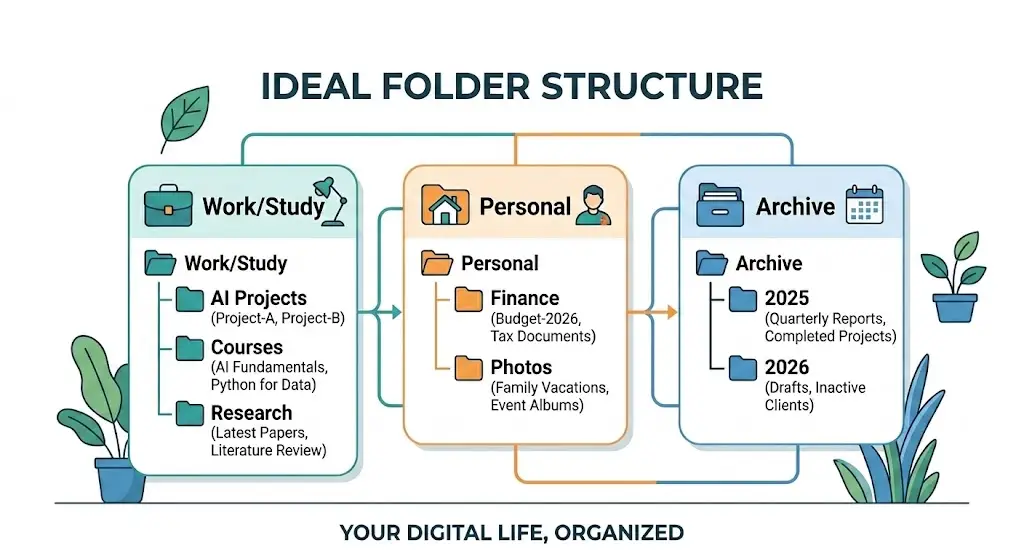
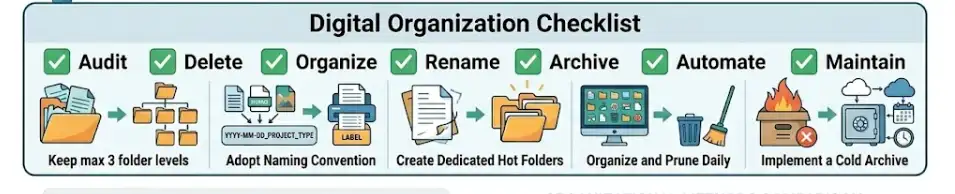
Now that noise is lower, decide how your long-term system should look. For AI/tech students and junior pros, a clean universal pattern is: “Work/Study,” “Personal,” “Assets,” and “Archive.” Inside “Work/Study,” create folders by project or course: “Course_ML101,” “Project_RecommendationSystem,” and so on. Inside each, keep a small set of standard subfolders like “Docs,” “Code,” “Data,” and “Media.” Avoid going more than three folders deep; if you’re nesting endlessly, the structure is too complex.
Step 5: Implement a file naming system that survives chaos
This is where most guides fail and where your future self wins or loses. Use names with date, topic, and version, like “2026‑03‑11_ProjectRecSys_Report_v1.docx.” ISO dates (YYYY‑MM‑DD) keep files in chronological order even when sorted by name. When you actually try this on one active project, you’ll find you no longer fear deleting older drafts because you can clearly see which file is current. Over time, you’ll stop generating “final_v3_real_final” disasters.
Step 6: Use action‑based folders to manage flow
Beyond your archive structure, add workflow folders such as “Inbox,” “To Review,” “In Progress,” and “Done.” Any new file you download or receive goes into “Inbox” first. Once you touch it, move it to “In Progress” or “Done,” then finally into the appropriate project folder if it’s worth keeping. This mirrors how physical offices work and turns your file system into a pipeline rather than a static warehouse.
Step 7: Sync and separate: active cloud vs cold storage
Decide which files should live in synced cloud folders and which should be moved to “cold storage” like external drives. Keep active semester courses, current projects, and shared documents in cloud spaces for easy collaboration. Move finished projects and old semesters into an “Archive_Year” folder on an external drive or cold cloud folder that you don’t open daily. This separation keeps everyday search fast and storage bills under control.
Step 8: Automate repetitive sorting where possible
Most systems allow rules or automations: email filters, cloud folder rules, or third‑party tools that move files based on type or name. Set up basic automations like “Save all Zoom recordings to /Work/Recordings” or “Move all PDFs from Downloads older than 30 days into /Archive/Scans.” Think of automation as having a quiet assistant: you still design the system, but the boring moves happen without your attention.
Step 9: Set rules for what must go—and when
To stop digital hoarding from creeping back, define rules like “delete downloads older than 30 days,” “archive completed projects after 6 months,” or “delete temporary exports after 7 days.” Some guides call this a “three-month rule” for unused files and emails. When you rely on rules instead of mood, you make fewer emotional decisions and more confident, fast ones.
Step 10: Lock in weekly and monthly maintenance
Finally, schedule a weekly 10-15 minute cleanup and a monthly 30-minute review. Weekly sessions handle Downloads, Desktop, and your “Inbox” folder. Monthly sessions compress old projects, check external backups, and adjust your structure if something new has appeared in your life. Once these blocks are on your calendar and you stick to them for a month or two, digital clutter stops being a huge crisis and becomes a small, predictable chore.
Comparison Table Strategy Options Side by Side
Different people need different ways to apply these ten strategies. Here’s how the three approaches compare.

| Name/Option | Key Feature | Best For | Limitation | Verdict |
| One-Weekend Reset | Apply all 10 strategies in 1–2 long blocks | Students on break; light to medium clutter | Mentally tiring; easy to rush decisions | Strong for quick reset, needs habits after |
| 30‑Day Daily Challenge | Small chunk of strategies each day | Busy workers; people who avoid big tasks | Requires discipline; slower visible progress | Great for building long‑term habits |
| Hybrid System (Reset + Habit) | Initial deep clean, then weekly routines | Most readers with ongoing projects | Needs planning to avoid slipping back | Best balance of results and sustainability |
If you love sprints and you have a free weekend, the one‑weekend reset lets you feel a huge shift quickly. If you’re juggling classes, labs, and part-time work, a 30-day challenge with 10-20 minutes daily will feel less scary. The hybrid approach suits most people: one big “win” session to break the back of the clutter, then weekly and monthly routines to keep everything in shape.
Real Benefits With Numbers and Specifics
When you organize and declutter your digital files with a proper system, the benefits compound in quiet but very real ways. Time is the most obvious gain. Studies on knowledge workers show that people can spend from 44 minutes to nearly 20% of their workweek just searching for information and documents. If you reduce that by even a third, you’re getting back roughly 15–25 minutes per day, which adds up to 75–125 hours a year—enough time for a full extra course, side project, or internship.
Storage savings are also significant. Digital decluttering campaigns and “digital cleanup days” exist because people and companies hoard huge amounts of unnecessary files, and when they actually delete them, the freed space is massive. On a personal level, it’s common to free tens of gigabytes by removing old backups, duplicate photos, and forgotten downloads. That can delay the need to buy a larger SSD or upgrade to a more expensive cloud plan, which matters when you’re on a student budget.
There’s a mental health angle most people underestimate. Research into digital hoarding shows links to anxiety and overload when people feel unable to delete or control their digital possessions. When you do this well, you’ll find that opening your laptop feels calmer; you’re not greeted by a wall of messy icons or a chaotic downloads list. One benefit most articles skip: you become more willing to share your screen in class or at work without feeling embarrassed by your desktop, which subtly boosts your confidence in group settings.
Finally, there’s a sustainability benefit in reducing digital pollution—unnecessary data stored in data centers that consume real energy. Organizations running digital declutter initiatives frame deletion of unused files as a small but meaningful climate action. When you cut your personal data footprint, you’re not just helping your own performance; you’re also taking part in a wider effort to make our digital habits less wasteful.
Beginner Mistakes Most People Make and the Fix
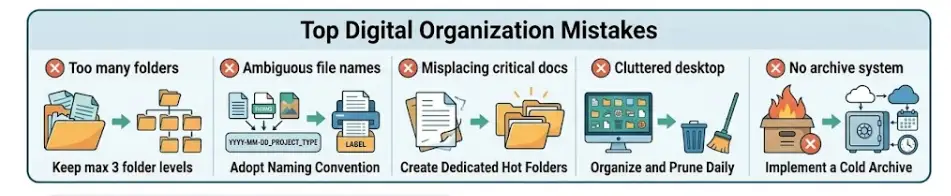
Mistake 1: Cleaning only the desktop and calling it done
Many people start with the desktop because that’s what they see, then stop once it “looks” cleaner. Underneath, their Downloads, Documents, and cloud drives are still chaos, so file search remains painful. This happens because visual clutter screams the loudest while buried clutter quietly slows you down. The fix is to treat the desktop as the last stage of cleanup, not the first, and always include Downloads and major folders in any session.
Mistake 2: Creating too many folders and subfolders
A classic error is building a beautiful but overcomplicated tree: “Work > 2026 > Semester1 > Course > Week > Assignment > Drafts,” and so on. It feels organized for a day, then becomes a maze you avoid. This tends to happen when you copy structures from corporate systems or tutorials that don’t match your life. Keep depth to about three levels and merge folders that only contain one or two files, so navigation stays fast.
Mistake 3: Relying only on search without naming discipline
People hear that modern systems have powerful search and decide they don’t need to name or file anything well. In practice, search is only as useful as the signals you give it; “Document1,” “notes.txt,” and “Screenshot(45).png” all blur together. The result is frustration and wasted time as you open the wrong files repeatedly. The fix is a simple naming pattern and a habit of adding at least topic words and dates to important files.
Mistake 4: Decluttering without any deletion rules
Beginners often sit in front of a full folder trying to decide, file by file, what to keep. Decision fatigue hits fast, and they either keep everything or quit. This is made worse by vague fears like “I might need this someday,” especially for academic or work materials. The fix is to set explicit rules—like the three-month rule for unused files or emails—so you follow a policy instead of wrestling with each file emotionally.
Mistake 5: Ignoring cloud and shared drives
Many people proudly clean their laptop, then forget that their Google Drive, OneDrive, or shared team folders are overflowing. Over time, these cloud spaces become even more critical than local drives since collaboration happens there. The human pattern is clear: “If it’s not in front of me, it doesn’t exist.” The fix is to treat cloud storage as a first-class part of your system, scheduling dedicated sessions for shared folders where duplicates and old versions often pile up.
Mistake 6: Doing a one-off “detox” and never adjusting habits
Some readers manage an intense detox—maybe inspired by a digital cleanup campaign or New Year motivation—then go right back to their old download‑and‑forget behavior. Within months, everything looks the same again. This happens because decluttering is treated like a project, not as a skill. The fix is to attach tiny habits to existing routines: for example, clearing Downloads every Friday evening or archiving completed projects at the end of each month.

Expert Tips That Actually Work
Tip 1: Tidy by context, not just by file type
Instead of separating all PDFs in one place and all images in another, organize by context: courses, clients, research themes, or products. For example, keep a “Project_Chatbot2026” folder with its docs, code, and assets inside, even if you could split them. This mirrors how you think about work and how you recall it later. When you actually try it, you’ll notice you find related items faster because they live together.
Tip 2: Use “Current Three” folders to focus your brain
Create a “Current_Three” folder at the top level and put shortcuts or symlinks to the three most important active projects inside it. Your brain pays more attention to what’s visually near the top, so this keeps critical work in sight. Once a project is finished, remove its shortcut and move it to Archive. This tiny trick reduces the cognitive load of seeing dozens of low-priority folders every time you open your file explorer.
Tip 3: Anchor your structure on one cloud provider
Pick one cloud service—Google Drive, OneDrive, or similar—as your “source of truth” and mirror your local folder structure there. Sync only the main “Work/Study” and “Personal” folders and keep experiments or temporary junk local. This creates a clear pattern: “If it matters long term, it lives in this cloud map.” You avoid the nightmare of files scattered across three different platforms, all out of sync.
Tip 4: Set up a quarterly “digital archive day”
Once per quarter, block 60–90 minutes for a deeper archive: move old projects, semester folders, and big media collections into dated archive folders and compress them. Label them clearly, such as “Archive_2026_Q1_Projects.” Knowing that everything older than a certain date is boxed and labeled lowers your fear of deleting intermediate junk. Over time, your active workspace remains light, while your history is still preserved in a structured way.
Tip 5: Use AI for classification, but keep human judgment for deletion
AI tools can help classify and cluster files by topic, project, or date, especially if you have messy mixed folders. They’re great for suggesting categories or spotting possible duplicates. But they shouldn’t be the ones deciding what gets permanently deleted, because they can’t know your context or future needs. Use AI as a smart assistant to speed up sorting, then apply your rules to decide what stays and what goes.
Tip 6: Name shared files from the recipient’s perspective
When you share files with classmates, teammates, or clients, name them as if you were on the other side: “2026‑04‑Sprint2_API_Design_v2” instead of “new_update.” This reduces questions and confusion in chats and emails and makes shared drives less chaotic. Over time, this habit also cleans up your own system, because you’re forced to encode meaning and time into names instead of leaving them vague.
Tip 7: Align email and file systems
Your email labels or folders and your file structure should roughly match. If you have a “Client_A” or “Course_NLP” label in your inbox, you should have corresponding folders in your file system. That way, when you’re hunting for something, you can ask yourself, “Is it in email or in files?” and then search within that single context. This parallel structure reduces the “where the heck is this?” feeling by half.
Tip 8: Use a “three strikes” rule for messy folders
When you notice yourself opening a messy folder for the third time in a week and thinking, “This is a mess,” treat that as a trigger for a mini‑cleanup. Don’t wait for a big session; spend five minutes cleaning just that folder. This reactive approach turns frustration into action and prevents hotspots from turning into full-blown disasters.
Advanced Insights What Nobody Else Tells You
Insight 1: Your digital clutter is a map of your decision anxiety
If you look closely, the folders where you hoard the most are often around identity‑loaded areas: old coursework, side projects you abandoned, or jobs you didn’t like. Those files represent “who you were” or “who you wanted to be,” so you delay decisions. Recognizing this lets you approach decluttering with more kindness: you’re not just deleting files, you’re sorting your story. When you frame it that way, you can intentionally archive certain chapters instead of letting them haunt your active workspace.
Insight 2: Shared spaces multiply clutter dynamics
In shared drives and repositories, nobody quite feels fully responsible, so clutter grows faster. People duplicate folders “just in case,” keep local copies, and then forget which version is real. This is why time-wasting in document search is such a big issue in companies, with estimates of nearly 20% of the workweek lost to hunting for information. If you understand that shared spaces need explicit owners and rules, you can advocate for and design structures that don’t decay as quickly.
Insight 3: Decluttering teaches you to design better systems in general
The skills you build while organizing files—naming consistently, thinking in flows, designing clear entry and exit points—are the same skills required in good API design, data modeling, and automation. As you refine your digital file system, you’re practicing how to design systems that are understandable to future humans, not just present‑you. That’s why people who take digital organization seriously often report that they write cleaner code and structure projects more logically over time.
Insight 4: You can’t fix a broken system with more tools
Many people try to solve digital clutter by installing new apps: note‑taking platforms, different clouds, “smart” file managers. These tools just spread your files across more places if your underlying habits and structure are weak. The system described in this article is intentionally tool‑agnostic: it works with any file explorer or cloud. Once your habits and architecture are strong, you can add tools on top as accelerators, not as crutches.
Frequently Asked Questions 10 Strategies to Declutter and Organize Digital Files
Start with a digital audit: list your devices and storage accounts, then identify the messiest folders like Downloads, Desktop, and old backups. Choose one device and move obvious clutter into a temporary “Inbox” folder while you design a simple top‑level structure. Next, mass-delete junk in short, focused sprints and rename important files with clear dates and topics. Finish by moving active files into your new structure and setting weekly and monthly cleanup times so you don’t slide back.
The best approach is to organize around your real projects and roles instead of file types. Use top-level folders like “Work/Study,” “Personal,” “Assets,” and “Archive,” then create one folder for each project or course with standard subfolders like “Docs,” “Code,” and “Media.” Keep folder depth at about three levels to avoid endless clicking. Combine this with a consistent naming pattern—date, topic, version—and your system will still make sense to you years from now.
Most people do well with a weekly and monthly rhythm. Weekly, spend 10–15 minutes clearing Downloads, cleaning your desktop, processing your “Inbox” folder, and renaming new files that matter. Monthly, set aside 30–60 minutes to move finished projects to Archive, compress old folders, and check that your external or cloud backups still work. If you’re extremely file-heavy, you might also schedule a quarterly “archive day” for bigger moves, but the weekly habit is what really keeps clutter in check.
Start by accepting that keeping everything “just in case” has a real cost in time, stress, and storage. Then create specific retention rules, like deleting unused downloads after 30 days or archiving course materials one semester after finishing. Use the three‑month rule from digital decluttering guides: if you haven’t opened a file, email, or app in three months and it’s not legally required, it’s probably safe to remove. When in doubt, compress and archive infrequently used folders so they’re out of your daily space but not gone forever.
A simple, human-readable pattern is best. Include date, topic, and version, such as “2026‑05‑12_NLP_Project_Report_v2.docx.” Using ISO dates keeps files sortable, while meaningful topics make searching easier. Reserve “v1,” “v2,” and so on for real changes, not minor typo fixes, so version numbers still mean something. Once you apply this system to a few active projects, you’ll notice how fast it becomes to find the right version without guessing.
Pick one cloud service as your primary hub and mirror your folder structure there. Sync the main “Work/Study” and “Personal” folders to your main computer and use your phone or tablet mostly for access, not for long-term storage. During cleanup sessions, treat each device as a separate “universe,” but always funnel important files into the same cloud architecture. Over time, aim to close or consolidate old accounts and drives so you’re not splitting attention across too many systems.
Yes, but they work best on top of a solid system, not instead of one. Disk usage tools can show you which folders and file types take the most space, while duplicate finders can help identify redundant copies. Some cloud platforms offer suggestions for large or unused items you might want to delete. You can also use automation tools or built-in rules to move files based on type or age, but your folder map and naming scheme should come first.
The secret is to connect organization to your regular workflow rather than treating it as a one-time event. Always save new files directly into the correct project or into your “Inbox” folder, never onto a random desktop. Attach short cleaning habits to existing routines—for example, process your “Inbox” folder every Friday or archive finished tasks when you close a project board or sprint. Once these patterns become automatic, staying organized stops feeling like extra work and becomes just “how you work.”
Group them into clearly labeled archive folders by year or theme, like “Archive_2024_Courses” or “Archive_2025_Projects.” Compress these folders to save space and move them to a colder storage location, such as an external drive or a less-used cloud area. Keep only the best examples and key references at the top level of your system; everything else should live in archive unless you actively need it. This way, your current workspace stays focused, but your history remains accessible if you want to revisit or showcase older work.
Quick Summary Take This Away
If you skimmed down to this part first, here’s the core message: organizing and decluttering your digital files for good is less about being “naturally tidy” and more about having a simple, repeatable system. You start by auditing where your files live and tackling one device at a time, focusing on high‑clutter folders like Downloads, Desktop, and old backups. Then you design a clear folder structure that matches your life—projects and courses at the center—and pair it with a naming pattern that encodes date, topic, and version into every important file.
Once the foundation is in place, you use ten strategies to lock it in: action-based folders, one primary cloud hub, small recurring cleanups, and explicit rules about what gets archived or deleted and when. When you do this properly, you’ll find that searching becomes faster, sharing files feels less stressful, and you free up both storage and mental bandwidth. Your next step is simple: schedule a 30-60 minute slot this week and use Strategy 1 through 4 as a checklist for your first serious digital reset.
Conclusion
The three most important ideas from this entire guide are straightforward. First, digital clutter is a system problem, not a personality flaw; once you design a structure that matches how you work, everything else gets easier. Second, your naming patterns and retention rules matter just as much as your folders, because they decide how confidently you can delete and how quickly you can find things later. Third, the only way to make this “for good” is to connect small maintenance habits to your existing routines so you’re always slightly ahead of the mess.
Your clear next step is to pick one device, create a simple top‑level folder map, and clean just your Downloads and Desktop using the sprint method in this article. From there, you can gradually roll out the rest of the strategies across cloud accounts and shared spaces. You already have the tools you need; now it’s about making a few deliberate decisions and letting those choices guide how you handle every new file from today onwards.




[…] next step is small but important: pick one device, set a 25‑minute timer, and clear just your Downloads and Desktop into a basic structure. Once you see how much lighter that feels, you’ll have the motivation to continue with cloud […]
[…] builders. Droven.io’s “vs competitors” framing explicitly compares itself to traditional productivity systems and modern AI workflow platforms, emphasizing that it is the thinking layer, not the […]