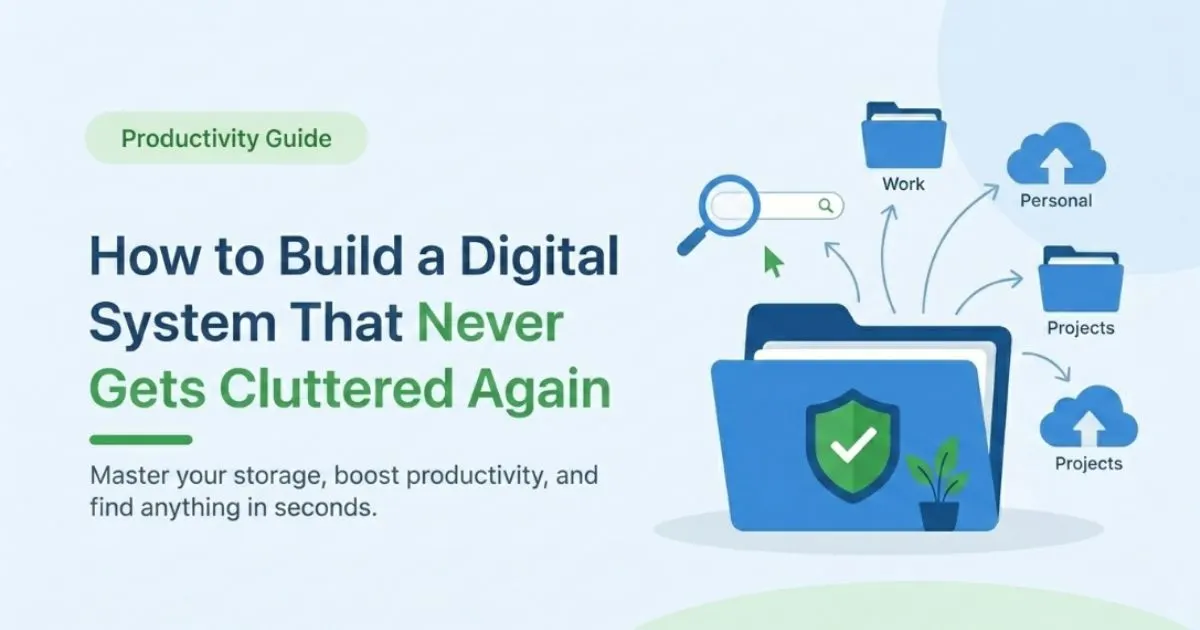
How to Build a Digital File System That Never Gets Cluttered Again (2026)
You’re tired of “big cleanups” that look great for a week and then slowly collapse back into chaos. You didn’t search for how to build a digital file system that never gets cluttered again because you want more folder name ideas—you want a system that basically runs itself once it’s set up. That is exactly what this guide walks you through.
By the end, you’ll know how to design a file structure, naming rules, and workflows that prevent clutter instead of constantly reacting to it. The confusing part is that most advice starts with decluttering, not with architecture and habits, so the clutter comes back as soon as life gets busy. We’ll flip that and build a system where every new file has a default home and a default expiration. This site is all about AI, tech, and digital productivity, so examples will fit students and young tech professionals who live in IDEs, Jupiter, and cloud drives. If you’ve ever done a heroic “digital detox” and found yourself back in the same mess a month later, you’re in the right place.
What This Topic Really Means and Why It Matters Right Now
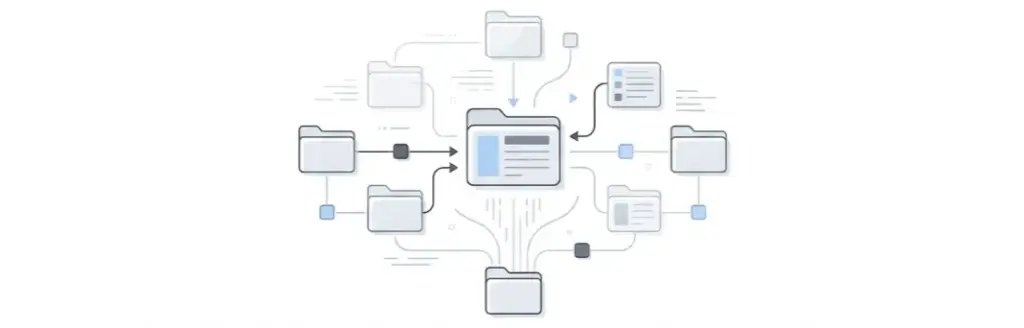
“Building a digital file system that never gets cluttered again” means designing more than just folders. It means combining structure (where things live), rules (what comes in and what leaves), and habits (when you touch them) so that clutter almost can’t form. Think of it like a well-designed API: good naming, clear contracts, and predictable behavior make it hard to misuse.
This matters now because the volume of digital information you handle is still exploding. Studies on knowledge workers show they can spend around 1.8 hours per day—almost 20% of their workweek—just searching for information. That’s hundreds of hours a year that vanish into bad search, duplicate versions, and messy folders. For an AI or CS student, that’s time you could be shipping projects or learning new models.
There’s also a mental and emotional side to this. Research into digital hoarding shows that constantly storing, scrolling, and avoiding deletion is linked to anxiety and reduced work performance. You might not label yourself a “hoarder,” but if you feel genuine stress when you think about your files, you’re feeling that same tension. In practice, I’ve watched people relax visibly when they open a clean “Current Projects” folder and realize they can see everything that matters in one screen.
We’ll get into the mechanisms behind this in the advanced section, including how digital cleanup campaigns like Digital Cleanup Day tie clutter to the environment and device lifespan. For now, hold onto this idea: you’re not just cleaning up. You’re designing a system that quietly saves you hours and mental bandwidth every week.
Who This Is For and Who Should Skip It
This guide is for people who are ready to treat their digital workspace like real infrastructure, not like an accidental pile of files. If you’re 18–25, learning AI or working in tech, and juggling code, reports, and assets across a laptop and a couple of cloud accounts, you’re exactly the person I had in mind. You don’t need color-coded perfection; you need something that works when you’re tired at 1 am and rushing a deadline.
You’ll benefit most if you fit into one of these:
- AI / CS students and learners
You have lecture slides, research PDFs, notebooks, datasets, and project reports scattered across Devices > Downloads > “New folder (2).” You need to be able to revisit past work for interviews or new projects without spending 30 minutes hunting each time. - Early-career devs, data analysts, and engineers
You live inside source control, shared drives, and email threads. Specs, CSVs, logs, and screenshots all mix together, and you sometimes hesitate to demo because your desktop is a mess. A system that is “clutter‑resistant” lets you respond quickly in standups and share your screen without shame. - Builders with side projects and freelance gigs
You have client folders, portfolio assets, content drafts, and experiments all mashed into one Documents folder. When you actually start shipping more work, this mess scales into chaos fast. A durable system helps you keep client work safe while growing your own portfolio. - People who feel anxious about deleting files
If you tend to keep everything “just in case” and then feel stressed by the volume of stuff, this guide will give you clear rules and archive patterns so you can delete confidently. Studies on digital hoarding show that having structure and rules is one of the ways people reduce that anxiety.
If you’re handling legal, medical, or government records with strict retention laws, this article isn’t enough—you need a formal records management policy. Also, if you rarely save files at all and mostly work inside specific SaaS tools with their own structure, your bigger issue is backup strategy, not clutter. If you’re a global AI/tech student or young professional who’s serious about never letting your files get out of hand again, this article is written for you.
How It Actually Works Complete Process
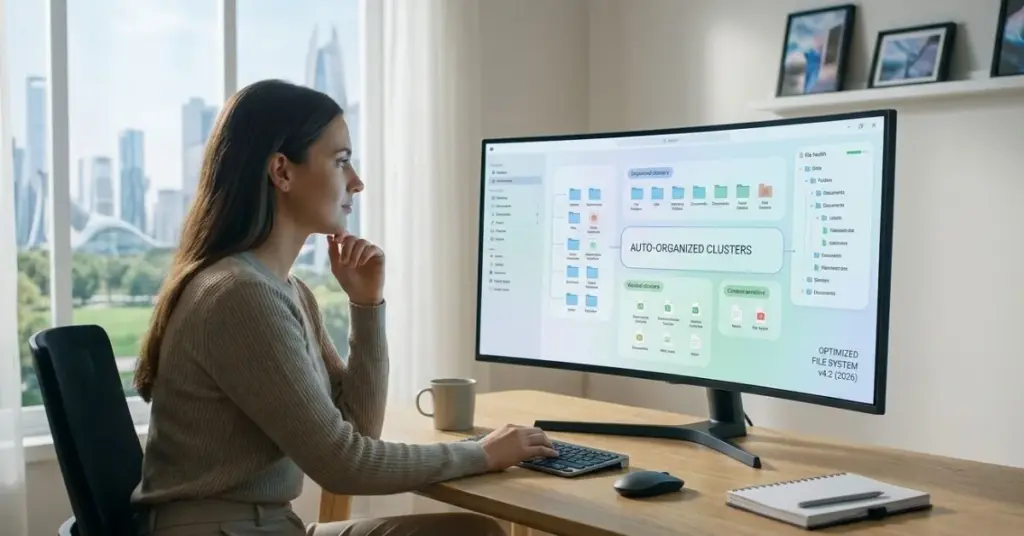
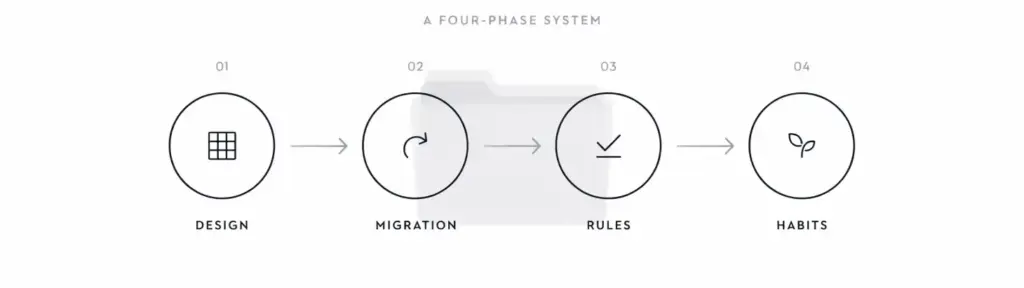
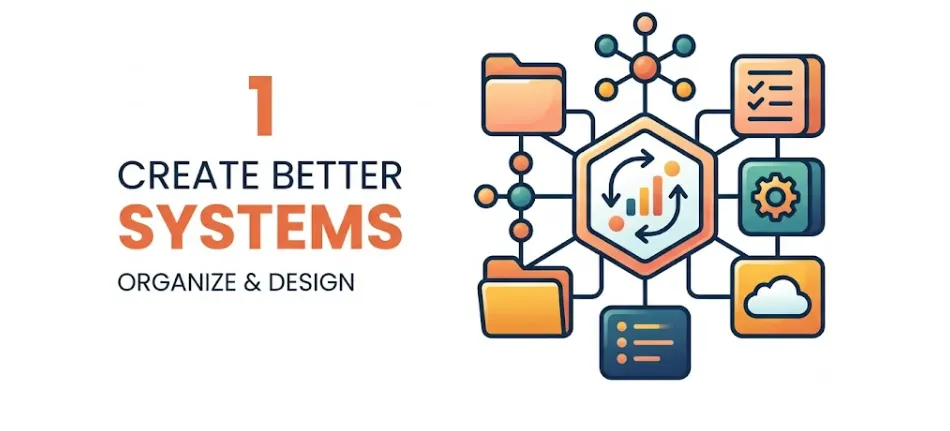
To build a digital file system that never gets cluttered, you’re going to follow a process in four phases: design, migration, rules, and habits. The key is that design comes first; Declutter alone never lasts. When you actually follow this order, you’ll find you spend less time “fixing” and more time just using a system that works quietly.
Step 1: Define your “universes” and pick a home base
Start by deciding which platforms matter: your main laptop, phone, primary cloud (Google Drive, OneDrive, etc.), and any external drive. Give one of them the role of “home base”—usually your main cloud account—where your master structure will live. Write this down somewhere simple: “Truth lives in: Google Drive > /Workspace_2026.” Everything in the rest of the process assumes this home base exists.
Step 2: Design your top‑level architecture on paper first
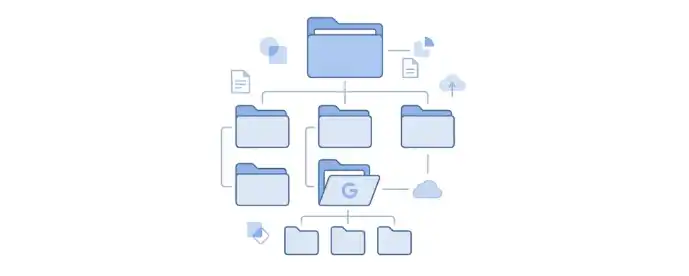
Before touching files, grab a notebook or a blank doc and sketch the highest level. For an AI/tech person, a simple but powerful pattern is:
- “Workspace” (current work and study)
- “Personal” (documents not related to work/study)
- “Assets” (reusable images, templates, slides, code snippets)
- “Archive” (completed and historical work)
Inside “Workspace,” list your main roles: “Courses,” “Projects,” “Clients/Internships.” Under each, you’ll have specific folders like “Course_ML2026” or “Project_Chatbot_Prototype.” Keep this to two-three levels deep. If you can’t speak your whole map out loud in under 60 seconds, it’s too complex.
Step 3: Create a standard project template
Now design one “project template” folder that you’ll reuse. For example:
- “00_Admin” (briefs, requirements, references)
- “01_Docs”
- “02_Code”
- “03_Data”
- “04_Media”
- “09_Deliverables”
Copy this template every time you start a new project or course. When you actually do this, you’ll find that your brain starts to trust the pattern: you always know where to look for a slide deck, a dataset, or the final report, regardless of the project. This template is one of the anchor pieces that keeps clutter from forming.
Step 4: Decide your naming convention and write it down
Your naming rule is the second anchor. A reliable pattern is:
YYYY‑MM‑DD_Context_ShortDescription_v1
Examples:
“2026‑03‑10_ML2026_Lecture05_Notes_v1.md”
“2026‑04‑02_ClientX_DashboardProposal_v2.pdf”
Use ISO dates so sorting alphabetically also sorts by time. Reserve “v1, v2…” for meaningful changes. Document this rule in a tiny “README_System.md” file at the root of your home base so you can share it with collaborators.
Step 5: Add action-based folders for flow
Static folders alone don’t prevent clutter. Create a small “flow layer” at the top of Workspace:
- “Inbox” (everything new lands here first)
- “In_Progress” (active items not yet attached to a project folder)
- “To_Archive” (finished items waiting for monthly archive)
New downloaded or saved files go into “Inbox” by default. When you touch them, they move to “In_Progress” or directly into a project’s template. Finished outputs go briefly into “To_Archive” before you batch‑file them. In practice, this keeps random files from sticking to your Desktop or Downloads indefinitely.
Step 6: Set up routing rules and defaults
Now you connect your tools to the system:
- Set your browser default downloads folder to a subfolder like “Workspace/Inbox/Downloads.”
- Change default save locations in common apps (Office, Google Drive desktop, etc.) to point into Workspace.
- If your email allows filters, label messages by project or course consistently with your folder names.
The idea is that most files arrive in the right neighborhood automatically. When you actually set this up, you’ll notice that fewer things land in random places, so clutter stops forming in the first place.
Step 7: Create clear retention and deletion rules
This is where you make the “never gets cluttered again” claim real. Decide rules such as:
- Downloads older than 30 days and not moved to a project folder are deleted.
- “Inbox” must be empty or near-empty every Friday.
- “To_Archive” is processed once a month.
- Completed courses/projects move to “Archive/Year” after 3–6 months.
Research on digital hoarding shows that people struggle most when there are no explicit rules; everything feels equally important. When rules exist, you outsource the decision to them and reduce anxiety.
Step 8: Migrate existing active work into the new skeleton
Only now do you start moving files. Begin with the last 3–6 months of active work and ignore older material for a moment. For each project, create a new project template in Workspace and drag related files into the correct subfolders, renaming them to match your convention. Old semesters or past jobs can jump straight to “Archive_Year” with minimal sorting; they don’t need perfection. If you haven’t done a first cleanup pass yet, start with my guide on how to declutter digital files, then migrate what survives.
Step 9: Attach maintenance to existing rhythms
Choose natural hooks: end of the study day, weekly review, sprint retro. Add three tiny tasks:
- Clear “Inbox” and “Downloads” into projects or delete.
- Move finished items to “To_Archive.”
- Check that your home base structure still matches how you actually work.
You’re not aiming for zero clutter at all times; you’re aiming for weekly “good enough,” which is sustainable.
Step 10: Periodically refactor the system, not just the files
Every 3–6 months, take 20–30 minutes to review whether your top-level architecture still fits your life. Maybe “Courses” shrinks and “Clients” grows. Maybe “Assets” needs separate “CodeSnippets” and “DesignKits.” This refactor is like updating a schema: you adapt the system to your current reality so it stays natural to use.
Comparison Table File System Models Side by Side
Here are three common models for a “never-cluttered” system and how they stack up.
| Name/Option | Key Feature | Best For | Limitation | Verdict |
| Project-Centric Model | Everything organized by project/client | Builders, devs, freelancers | Cross-project reference docs can duplicate | Best if your life is driven by projects |
| Area-of-Life Model | Organized by roles (Study, Work, Personal) | Students, early-career professionals | Projects that span areas can feel split | Great for clarity by role and identity |
| Time‑Boxed Model | Organized by year/quarter first | Interns, fast‑changing work, short courses | Harder to see all assets for one project | Strong for archiving and annual resets |
If you mostly work on discrete projects (research, apps, client gigs), a project-centric model feels most natural. If your world is divided into “uni,” “job,” and “life,” an area‑of‑life model may be better, with project templates inside each area. Time-boxed structures shine when your work changes rapidly by term or quarter, but they work best when combined with one of the other two so you’re not relying solely on dates
Real Benefits With Numbers and Specifics
Building a digital file system that resists clutter pays off in three big currencies: time, cognitive load, and risk reduction. Time first. Multiple analyzes of knowledge workers show that employees can spend around 1.8 hours per day—roughly 9 hours per week—just searching for information. Even if your system only cuts that by a third, you’re reclaiming about 3 hours per week, or roughly 150 hours per year.
Cognitive load is harder to measure, but it’s real. Studies on digital hoarding link overloaded digital environments with anxiety and reduced performance, especially when people feel unable to control or delete information. When you do this work properly, you’ll find that opening your laptop feels less like walking into a messy room and more like stepping into a studio where everything has a place. You spend less energy remembering where files are and more on actually thinking and building.
There’s also a risk angle. A clear system makes it less likely that you’ll lose critical files or accidentally share the wrong version in a high-stakes situation. Because your projects have standard templates and naming, it becomes easier to spot when something is missing. Over time, this smooths collaboration, reduces “Where is that?” messages, and helps you build a reputation as the person who always has what’s needed ready to go.
One benefit most articles skip is the environmental and hardware impact. Events like Digital Cleanup Day and similar campaigns connect decluttering with smaller data footprints and longer device life: less storage strain, fewer unnecessary backups, and fewer upgrades driven purely by clutter. When you store only what you truly need and archive cleanly, your laptop and phone stay responsive for longer, and you need fewer emergency “I’m out of space” fixes.
When you actually live in a system like this for a few months, you’ll notice the biggest change on bad days: even when you’re tired or stressed, the structure quietly keeps you from drowning in your own files.
Beginner Mistakes Most People Make and the Fix
Mistake 1: Starting with decluttering instead of design
Most people start by randomly deleting and moving files, then try to invent a system as they go. This feels productive for an hour, then ends in “Misc” folders and new chaos. It happens because decluttering is visible and system design is abstract, so you gravitate to what feels like progress. The fix is to spend at least 20–30 minutes designing your top-level map and naming rules before touching any files, so every move serves a structure.
Mistake 2: Copying someone else’s structure blindly
You see a slick YouTube setup or a corporate shared drive and copy it folder for folder. A month later, you hate it and stop using it. That structure matched someone else’s brain, team, and tools, not yours. The fix is to use other systems as inspiration, but filter them through your roles and habits. If you think in projects, start there; if you think in semesters or quarters, let time play a bigger role.
Mistake 3: Using too many top-level folders
Some beginners create 15–20 top‑level folders: every course, every client, every tool. The top of your drive becomes a sea of names that are impossible to scan quickly. This happens because it feels safer to categorize finely than to make bolder, simpler decisions. The fix is to keep top-level folders to a small number of broad areas (“Workspace,” “Personal,” “Assets,” “Archive”) and go specific one level down.
Mistake 4: Never write down the rules
You think, “I’ll remember that v1 means draft, v2 means reviewed, v3 means final,” and then months later you don’t. Or, someone else joins your project and uses different conventions. The system decays quietly. This is the mistake almost everyone makes without realizing it: the rules live only in their head. The fix is to create a short “README_System” file at the root of your home base explaining your map, naming, and retention rules in a few bullet points.
Mistake 5: Ignoring the psychology of “just in case”
Many people keep everything because the pain of deleting a “wrong” file feels greater than the pain of ongoing clutter. Research on digital hoarding shows this is tied to attachment, fear of loss, and even identity. The consequence is that your system fills with low-value files that dilute the important ones. The fix is to use clear, time-based rules (eg, delete unused downloads after 30 days, archive courses one semester after completion) so you’re not facing a fresh emotional decision for every single file.
Mistake 6: Treating the phone and cloud as afterthoughts
People often build systems on their laptop and then leave their phone and cloud in wild-west mode. Over time, these become separate universes where different versions of the same files live. The cost shows up when you need a critical file on the go and find three different copies in three locations. The fix is to extend the same architecture and naming to your primary cloud and to treat the phone as a thin client that syncs to your home base, not as a separate filing system.
Expert Tips That Actually Work
Tip 1: Design “entry points” as carefully as folders
Most clutter forms at the entry point: the place where files first arrive. That’s usually Downloads, email attachments, or your Desktop. Treat each entry like a gate with a plan. For example, set your browser to save into “Workspace/Inbox/Downloads,” not the generic system Downloads. When you actually do this, you’ll notice that simply changing the gate location reduces how many files vanish into the wrong places.
Tip 2: Use project codes to keep long names readable
When projects get long names (“AI‑Powered Internship Matching Platform”), filenames become huge. Introduce short project codes like “IPM” and standardize them: “2026‑05‑01_IPM_DesignDoc_v1.” Store a simple map of codes in your README. This keeps names readable while still encoding meaning and helps when you use search across devices.
Tip 3: Mirror your Git and file structure
If you use Git or other version control, mirror the logic of your local project folders inside repositories. That means similar directories for “docs,” “src,” “data,” and “assets” where appropriate. This consistency makes it easier to move between repo and file system and reduces the chance of random trash folders growing alongside serious code.
Tip 4: Use “lifecycle tags” where your system allows it
On macOS, Windows, and many cloud tools, you can tag or label files. Use tags like “Now,” “ThisWeek,” and “Reference” alongside your folders. Lifecycle tags cut across structure and give you fast, ad‑hoc lists of what truly matters right now. Over time, you’ll notice that you open tagged items far more than untagged ones, which helps you see which folders may be safe to archive.
Tip 5: Connect your system to your task manager
When you create a task like “Finish ML assignment 3,” link directly to the project folder or the key doc using a file or cloud link. This links “what you need to do” to “where the stuff lives,” so you don’t have to hunt when you start the task. A system that never gets cluttered isn’t just clean; it integrates cleanly into your daily flow.
Tip 6: Decide one “official” place for certain file types
Pick one “Reference_PDFs” folder, one “Templates” folder, one “Slides_Decks” folder, and stick to them. Any time you’re tempted to save a reference or template elsewhere, redirect it to the official place. This avoids “shadow libraries” of duplicated material scattered across projects, which often become a big source of clutter.
Tip 7: Use regular events like Digital Cleanup Day as check-ins
Global campaigns like Digital Cleanup Day encourage people to clear their data and extend device life each year. Use that date (or a similar annual event) as your big system health check: archive a whole year’s worth of projects, prune your Archive, and refactor your top level if your life has changed. Anchoring refactors to external events makes them harder to forget.
Tip 8: Tune your system based on your worst days
Design for the version of you who is tired, rushed, and distracted. If a rule or pattern only works when you’re feeling motivated, it will fail. For example, if it’s too much to file every new download perfectly, make sure the default download path is your “Inbox,” so at least everything lands in one place you process later. When you think this way, your system becomes genuinely resilient.
Advanced Insights What Nobody Else Tells You
Insight 1: Clutter prevention is about decision batching, not discipline
People think a “never-cluttered” system requires constant self-control, but it actually relies more on batching decisions. When you decide folder structure, naming conventions, and retention once, you stop re-deciding those things for every file. This is the same principle behind good software architecture: make a few solid global decisions so you don’t have to make hundreds of local ones.
Insight 2: Digital hoarding is often about identity, not information
Studies on digital hoarding show that people sometimes keep files not because they’re useful but because they represent projects, relationships, or parts of themselves they’re not ready to let go of. That’s why old course folders, failed side projects, and past job materials can be emotionally heavy. A good system doesn’t force you to delete your past; it moves it into clearly labeled archives so your present work isn’t overshadowed by it.
Insight 3: A “never‑cluttered” system is allowed to be imperfect
Perfectionism kills more systems than laziness. If you demand that every file be perfectly named and filed at all times, you’ll burn out and abandon the structure. Sustainable systems assume some mess and provide places to catch it, like “Inbox” and “To_Archive.” The key is that these mess zones are controlled and regularly emptied, not that they never exist.
Insight 4: Environment-level events are your secret weapon
Organizations that run digital cleanups don’t just tell people to “be tidy.” They create specific events, campaigns, and shared deadlines. You can copy this at a personal scale by pairing your quarterly archive session with other life events: end of term, end of sprint, start of a new job. Aligning structure refactors with natural transitions makes it easier to maintain a system that matches who you are now, not who you were last year.
Frequently Asked Questions Building a Digital File System That Stays Uncluttered
Start by choosing a home base (usually a primary cloud drive) and designing a simple top‑level structure on paper: Workspace, Personal, Assets, and Archive. Create reusable project templates with standard subfolders and define a clear naming rule that includes dates, context, and versions. Add “Inbox,” “In_Progress,” and “To_Archive” folders to control file flow, and then set explicit rules for when items move or get deleted. Finally, attach short weekly and monthly maintenance routines so the system constantly self-corrects.
The best structure is one that matches how you actually think and work, not a generic template. For most AI/tech students and junior professionals, organizing by projects and roles works well: Workspace > Courses/Projects/Clients, each with the same internal layout. Keep folder depth to about three levels to avoid maze‑like navigation. If you frequently work in time‑boxed chunks (semesters, quarters), add Archive folders by year to keep old work out of your active field of view.
Treat them as temporary staging areas, not permanent storage. Set your browser and apps to save into an “Inbox” folder inside your Workspace instead of the default system Downloads, then schedule a weekly 10–15 minute slot to process that Inbox. Keep your Desktop for shortcuts or at most one or two “Currently Doing” folders and clear it at the end of each week. The goal is not to never use these spaces, but to ensure nothing lives there long-term.
Use a simple pattern that encodes time, context, and version, such as “YYYY‑MM‑DD_Context_Description_v1.” This might look like “2026‑05‑03_MLProject_Report_v2” or “2026‑02‑20_ClientA_Wireframes_v1.” ISO dates keep files in order, context words make search easier, and versions help you safely delete older drafts later. Write your convention in a short README at the root of your system so collaborators can follow the same rules.
Apply a triage approach. Start by identifying active work from the last few months and migrating only that into your new system with proper names and folders. For older material, bundle it by year or theme into “Archive_2024_Courses,” “Archive_2025_Projects,” and compress these folders if storage is tight. You don’t need perfect internal order for archive items; you just need them labeled and out of your active space so they don’t cause daily clutter.
A light weekly session and a slightly deeper monthly session work well for most people. Weekly, clear your Inbox and Downloads, tidy your Desktop, and move finished items into “To_Archive” or appropriate project folders. Monthly, process “To_Archive,” move completed projects into annual Archive folders, and confirm your backups work. Every 3–6 months, do a quick system review to adjust top‑level folders if your roles or priorities have changed.
Digital hoarding leads to huge volumes of files kept “just in case,” which makes search slower, increases decision fatigue, and amplifies stress when you try to find or delete anything. Research shows that hoarding behaviors in digital environments are linked to anxiety and lower performance, especially when there are no clear rules for what to keep. A well-designed system with explicit retention rules and archives reduces this load, making it easier to let go of low-value files.
Tools can help, but they are not the foundation. Disk analyzers and duplicate finders can highlight large or redundant files, and automation tools can move items based on type or age. Campaigns and apps that encourage “digital cleanups” can provide motivation and structure. However, without a clear folder architecture, naming convention, and habits, new apps just distribute clutter across more locations. Start with the system described here, then add tools to speed up specific tasks.
Pick one cloud provider as your master home base and replicate your folder structure there. Sync only the core Workspace and Personal folders to your main computer and treat your phone or tablet mainly as a viewer with limited saving. When you save files from mobile, drop them into the same “Inbox” your laptop uses so they enter the same pipeline. Over time, this single source of truth prevents version conflicts and keeps your entire digital life in one coherent map.
Quick Summary Take This Away
You don’t keep your digital files uncluttered by endless cleaning; you do it by designing a system where clutter struggles to form. That system starts with a clear home base, a small set of top-level folders, and a reusable project template that lives under each role or course you take on. On top of that, you add a naming convention that bakes dates, context, and versions into every important file so search becomes a powerful ally instead of a desperate last resort.
Then you layer in flow: Inbox, In_Progress, and To_Archive folders that govern how files move from arrival to archive, plus explicit rules for when they’re deleted or moved out of your active workspace. When you do this, you’ll find that weekly maintenance becomes a quick, almost boring task and that old patterns of “Downloads chaos” slowly disappear. Your exact next step is simple: choose your home base, sketch your top-level map on paper, and create your first project template before touching any existing files.
Conclusion
The core idea behind a digital file system that never gets cluttered again is that architecture, rules, and habits do the heavy lifting—not endless bursts of motivation. You decide where things live, how they’re named, and when they expire so that countless small decisions over months and years become almost automatic. Once those pieces are in place, the system protects itself, even on days when you’re tired, rushed, or distracted.
Your next move is to stop decluttering randomly and instead invest an hour in designing your map, naming scheme, and Inbox/Archive flow, then tag one device and one cloud account as your home base. From there, you can migrate active work into this skeleton and let your weekly and monthly cleanup routines stabilize it. You’re closer than you think to having a digital workspace that feels calm, fast, and reliable every time you open your laptop.